How to Make an AI Render Step by Step
To make an AI render, upload your sketch, pick a style and method, and download the result a few seconds later. This guide covers each step, with examples, videos and tips for better results.
Summary: 3 steps to make an AI render
If this is your first time, start here. The detailed step-by-step guide is further down.
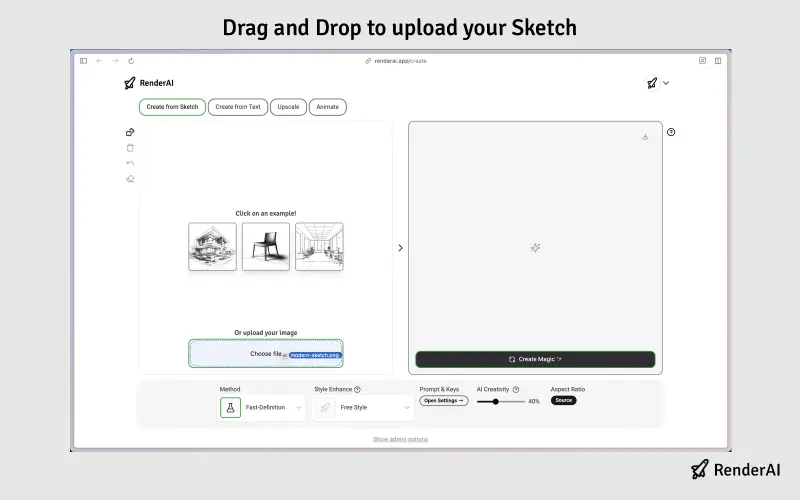
Upload Your Design
Open the AI render app and upload your sketch, floor plan or concept. It works with hand drawings, photos and screenshots from CAD, SketchUp or Revit.
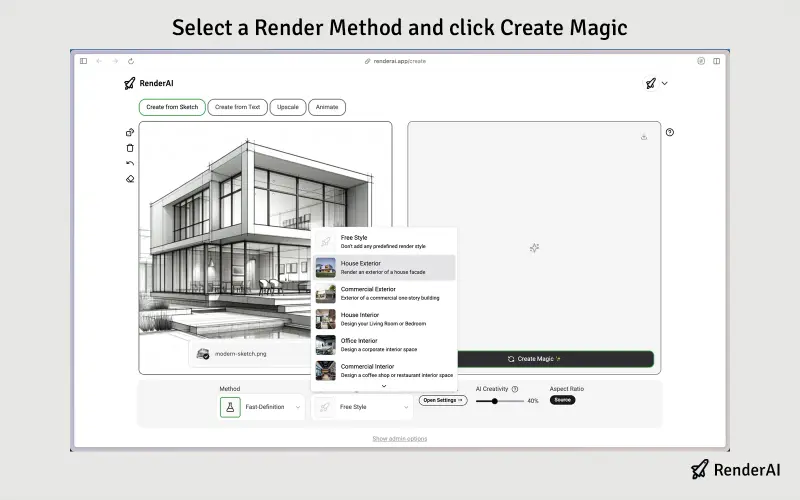
Select Options
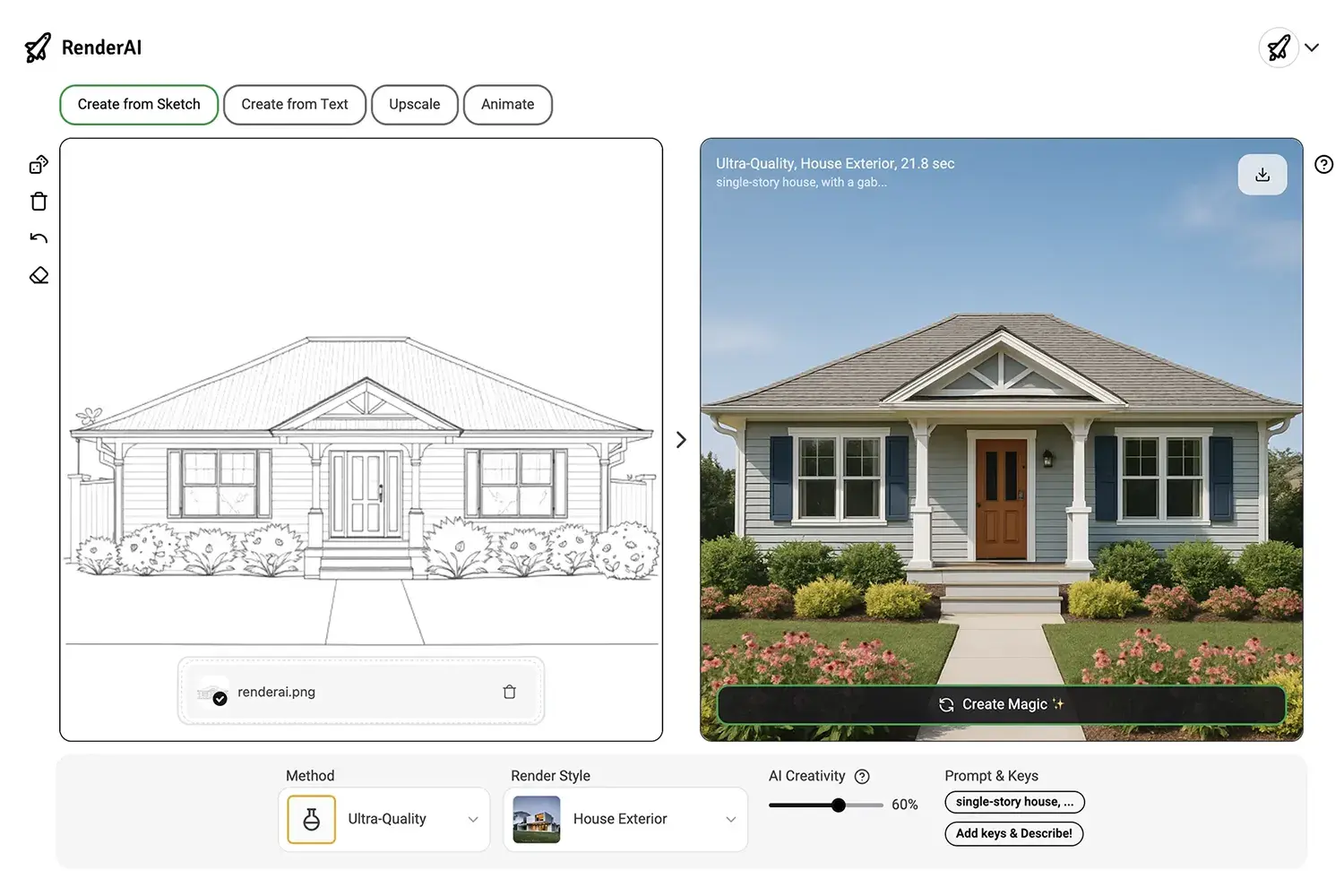
Choose from Render AI predefined prompts, render styles and render methods (Fast-Definition or Creative-Quality) based on your project needs, then click “Create Magic” to generate your render in seconds.
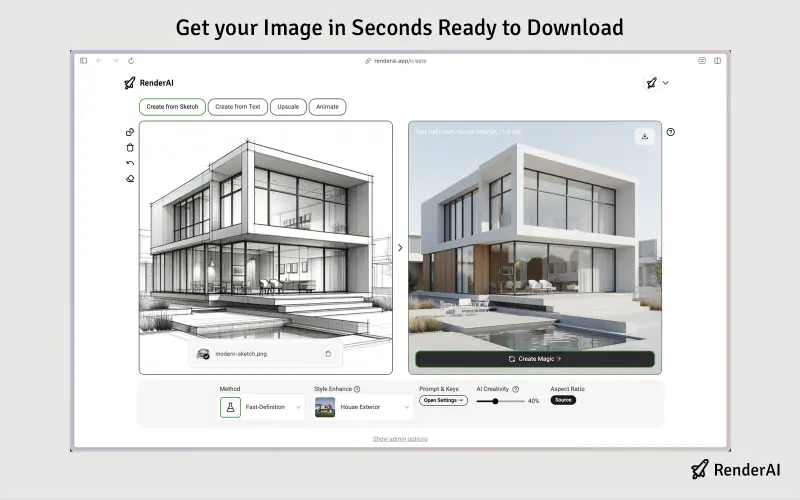
Download or Re-Render
Get a high-quality, professional render in seconds. Ready for client presentations, portfolio, or project documentation. Iterate to create fast variations and adjustments.
Quick Video Demos
Check out these quick videos of how to use Render AI
Video Workflow 1: Fast Exterior AI Rendering
Turn a facade sketch into a presentation-ready render in a few seconds.
Video Workflow 2: Add Furniture with AI and Re-Style an Interior Design Space
Explore AI Rendering for Interior Design: Upload, sketch ideas, drop furniture and decor references, add people to an image. Upscale your final render for a print-ready high-quality image.
Video Workflow 3: Multi-Image AI Rendering Feature for Guiding the AI
Transform an sketch into an interior design AI rendering using multiple reference images. By combining style, materials, and lighting references, you can create realistic AI interior designs faster and with more control than text instructions.
Pro Tips for Best Results
Use Detailed Inputs
Use clear, high-contrast images or sketches with enough details for better AI interpretation and more accurate render outputs.
Crop Your Image
Crop your image to focus on your main subject and remove any unnecessary elements before uploading to avoid distractions.
Guide the AI, but keep it simple
Use fewer, more specific keywords and clear descriptions. The best text instruction include a bit of context of the input, the modification, and the output. Use Style-Enhance to 'None' for more control.
Iterate and Experiment with Render Methods
Create multiple renders with different settings to find the best one for your project. Use Fast-Definition render method for a good balance between speed and quality.
Full Step-by-Step Guide
The whole process inside the app, from signing in to downloading your render.
Visit Render AI Create App
Go to Render AI Create in your desktop or mobile web browser to access our app and start creating.
Sign in to the App
Click the sign-in button to register or authenticate using your Google or Microsoft account.
Choose Input Method: Sketch to Image, Text to Image, Image Upscale, or Image to Video
Select your preferred input mode: 'Sketch to Image' to upload sketches or draw directly online, 'Text to Image' for text prompts, 'Image Upscale' to upload an existing image and enhance it, or 'Image to Video' to create 5 second or 10 second animations based on an existing image.
Upload Your Sketch or Draw Directly Online
Either draw your sketch directly on the online canvas using the drawing tools, or upload an existing image file by dragging and dropping it, or clicking 'Choose file'. Ensure your sketch has good contrast, clear lines, details, and a good perspective for best results. You can upload a screenshot of your 3d model or a photo of your drawing.
Select Rendering Method, Style, and Options
Choose your rendering method, for example Fast-Definition or Creative-Quality; select a style (Interior, Exterior, Object, etc.) or None for max control, and add descriptive keys or custom text or image instructions to guide the AI generation. The best you guide the AI, the better the results will be. A quick example: You want to create a high-quality render of a modern house with a green lawn and a blue sky, you can specify a custom text description like 'Create a high-quality photorealistic render of a modern house with a green lawn and a blue sky based on this sketch.' Be direct and specific. With AI, 'less is more'.
Click on Create Magic to Generate Your AI Render
Click the 'Create Magic' button to start the AI rendering process. The most advanced artificial intelligence image technology available will analyze your input image and settings and generate a high-quality AI rendering in seconds.
Iterate a Few Times and Create Multiple Variations
It's recommended to iterate a couple of times creating multiple variations of the same image or video until you are happy with the results. Re-rendering a specific image is a good practice for achieving perfection.
Download to Save or Share Results
The preview will show you the results of the AI rendering process on the right side of the screen. Once you are happy with the results, you can download it to your device or share it or continue iterating to create more variations, upscale, or create a video based on the results.
How to Select the Right Rendering Method
Understanding our AI models' capabilities helps you select the right method for your project needs.
Fast-Definition
Balanced speed and quality. Ideal for most creative tasks requiring clear, detailed results high detail preservation and quality.
Results are reliable and cost-effective, with high detail preservation and quality.
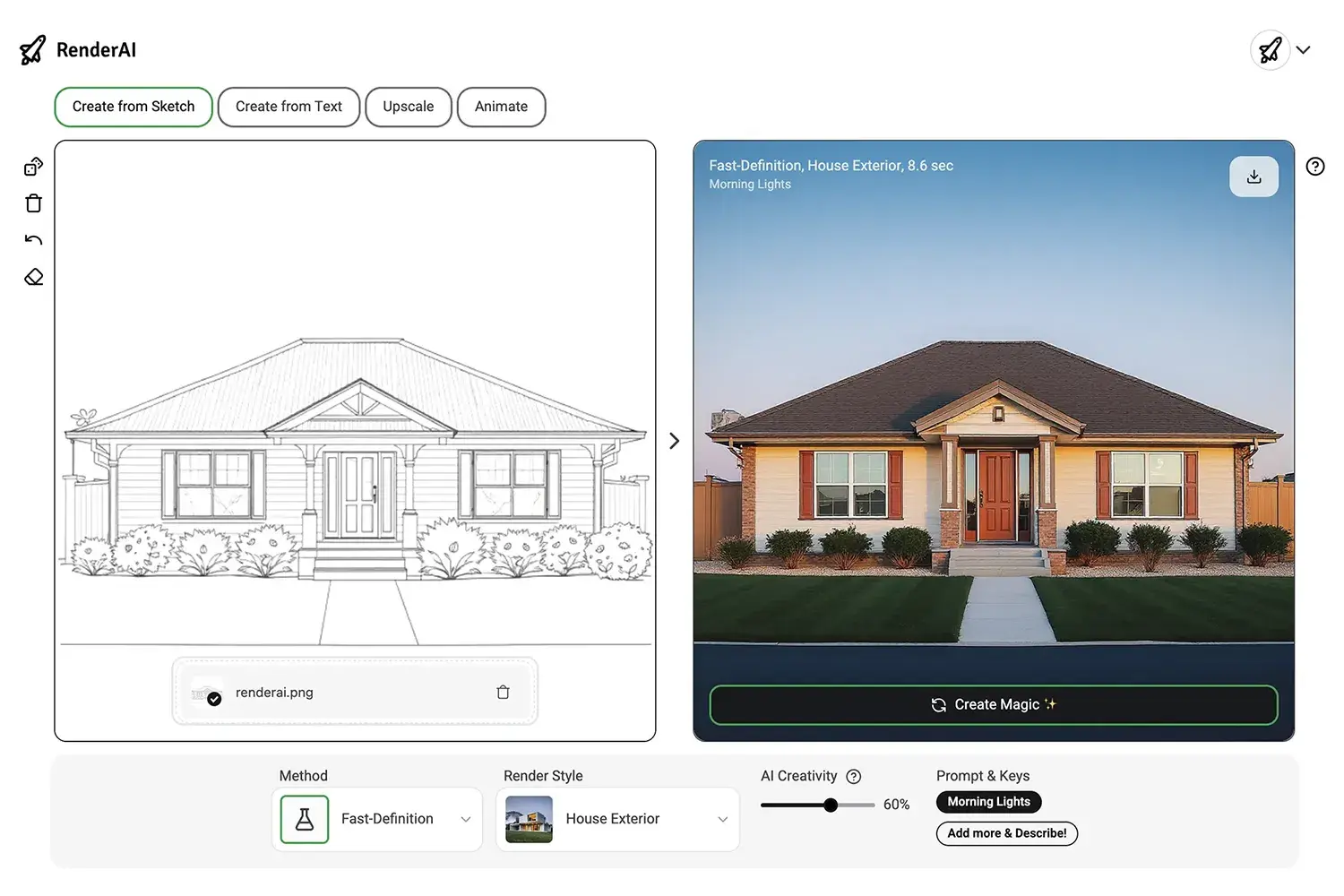
Example of Fast-Definition AI Render
Creative-Quality
Our cutting-edge model for highest quality with creative freedom. Perfect for final renders and presentations.
Takes longer and uses more tokens but delivers stunning, high-resolution results.
Example of Creative-Quality AI Render
Frequently Asked Questions
Can't find your question? Write to us and we'll reply within 24 hours.
- Most image renders are ready in seconds. The Creative-Quality method takes a bit longer than Fast-Definition.
- No. You can upload a photo, a screenshot of your 3D model or a hand-drawn sketch. You can also start from a description with Text to Image mode.
- Yes. Render AI works with screenshots from CAD, SketchUp, Revit and other 3D software. Use a view with good perspective and clear lines for better results.
- Fast-Definition works for most projects. It is quick, cost-effective and keeps detail well. Creative-Quality gives more creative freedom and higher quality for final renders, but takes longer and uses more tokens.
- It depends on the tool and the method. As a reference, 100 tokens let you create up to 100 images or 10 videos. The app shows the token cost before you generate.
Ready to Transform Your Sketches into Professional Renders?
Join hundreds of thousands of creators using RenderAI to bring their ideas to life in seconds.