Getting started
Use Render AI on your phone
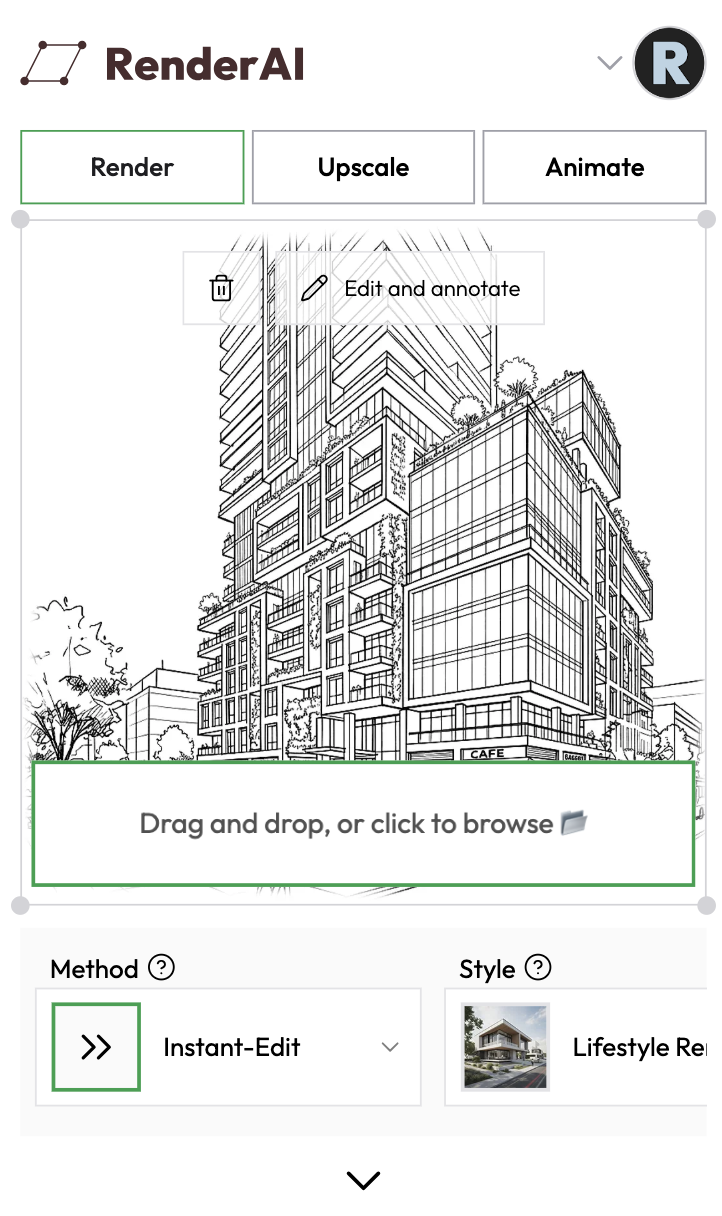
Render AI works in the browser of your phone or tablet, with the same account and tokens. Add it to your Home Screen to open it like an app.

Ask your preferred AI
Our guides are built for AI. Open one in yours and ask in your own words. It will read our docs and answer with full context.
Text copied. Open Gemini and paste it in the chat. Open Gemini
Text copied. Open Claude and paste it in the chat. Open Claude
To paste in another AI chat.
AI can make mistakes. Check our terms or write to us.
How to use it on your phone
-
Open your browser.
Safari, Chrome or any other browser on your phone or tablet. There is nothing to download from the App Store or Google Play.
-
Go to renderai.app.
Type renderai.app in the address bar and open Create.
-
Sign in with Google or Microsoft.
For example with your Gmail or Outlook email. Use the same account as on your computer: your plan, tokens and history are already there. See My account.
-
Upload or take a photo.
Tap the upload area to take a photo with the camera or pick one from your library. Then choose the method and style and tap Create Render.
-
Save the result.
Download it to your phone, or open it later on your computer from History.
Add it to the Home Screen on iPhone or iPad
-
Open Create in Safari.
Go to Create and sign in.
-
Tap Share, then Add to Home Screen.
The Share button is the square with an arrow. Scroll down the list if you don't see the option.
-
Tap Add.
The Render AI icon appears on your Home Screen and opens Create full screen.
Open Create in Safari, tap Share, then Add to Home Screen. Watch it on YouTube.
Add it on Android
In Chrome, open Create, tap the menu (⋮) and choose Add to Home screen or Install app.
Related
- From a photo: restyle a photo of a room or a facade
- From a sketch: render a hand sketch
Last updated: November 26, 2026
These guides are informational, may change without notice and may contain errors. They aren't a contractual commitment. They're subject to our terms of service.
Was this page helpful?
Thanks for telling us.