Create from 3D
Render a SketchUp model with AI
You can render a SketchUp model in the browser, by uploading a view to Create, or inside SketchUp with the Render AI extension. Both use the same account, and every render is saved to your history.
Ask your preferred AI
Our guides are built for AI. Open one in yours and ask in your own words. It will read our docs and answer with full context.
Text copied. Open Gemini and paste it in the chat. Open Gemini
Text copied. Open Claude and paste it in the chat. Open Claude
To paste in another AI chat.
AI can make mistakes. Check our terms or write to us.
Two ways to render
In the browser
-
Export the view.
In SketchUp, export a scene as an image or take a screenshot.
-
Upload it on Create.
Open Create, upload the image, pick a style and create the render.
In the web app, on Pro plans, you can also upscale the result or turn it into a video. See Upscale and Animate.
With the extension
The extension captures your SketchUp view or a saved scene and returns the render in a panel next to your model.
Install the extension
-
Download the extension.
Get the
.rbzfile (version 1.1.0). You don't need to unzip it. -
Install it from the Extension Manager.
In SketchUp, open Extensions > Extension Manager, click Install Extension and pick the file.
-
Open the panel.
Go to Extensions > RenderAI > Open RenderAI Panel, or click the RenderAI button in the toolbar. On Mac you can drag the button to the main toolbar.
Sign in
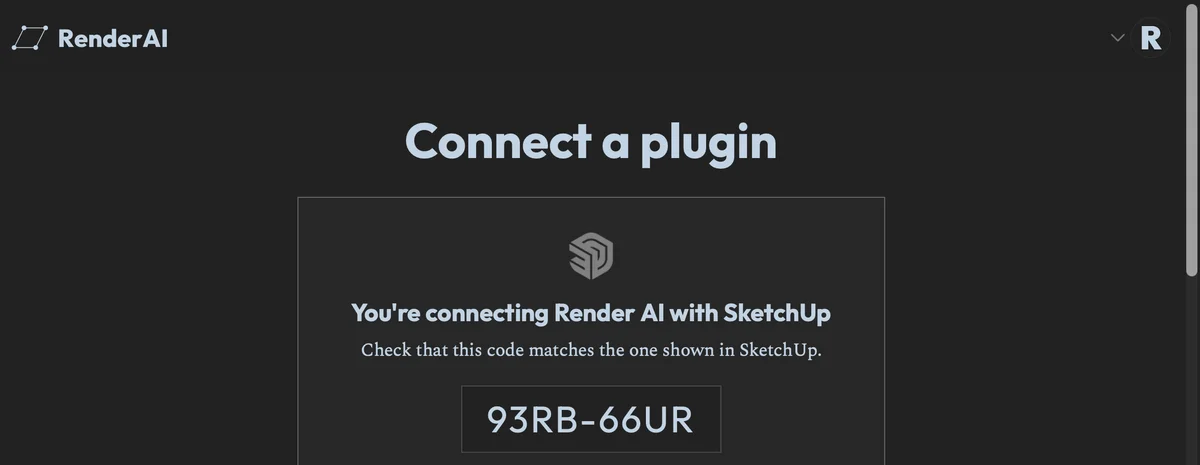
Click Sign in in the panel. Your browser opens on Render AI. Check that the code matches the one in SketchUp, click Connect and go back to SketchUp. There's no key to copy. You sign in with your Google or Microsoft email. No account yet? You can create one on the same page, and the free plan works.
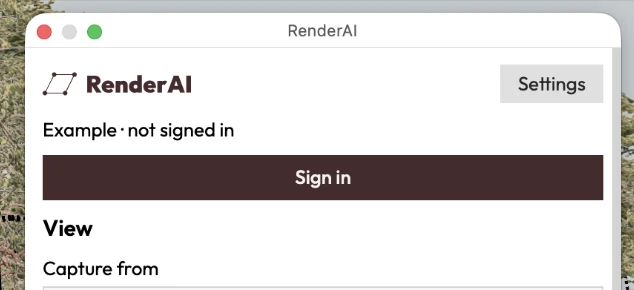
Without signing in, the panel shows an example and doesn't use tokens.
Create a render
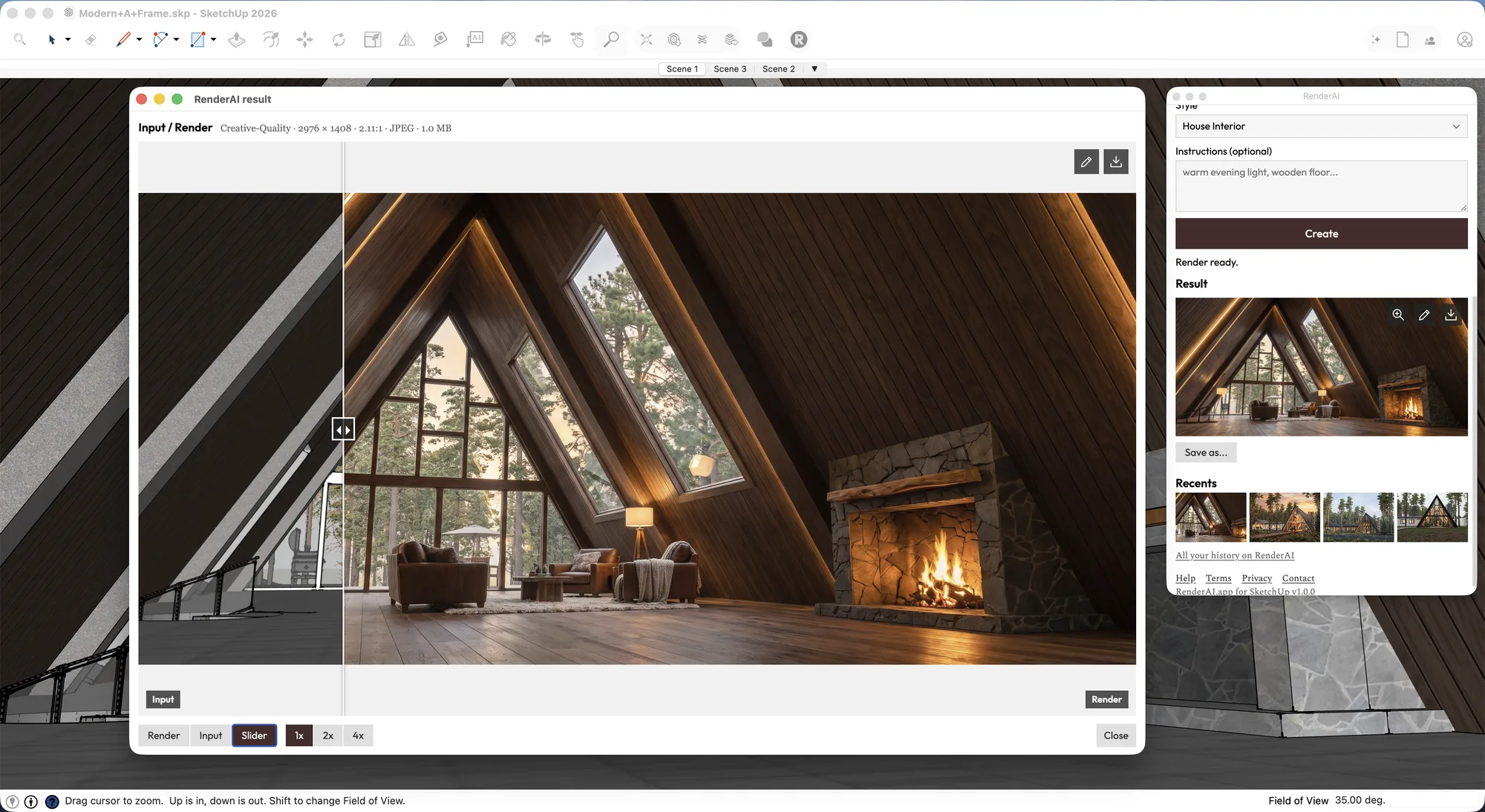
The panel captures your current view, or pick a saved scene in Capture from: SketchUp switches to it first, with its camera, style and tags. Choose a style, write instructions if you want, and click Create. The render appears in the panel and is saved to your Render AI history. Your last renders stay in Recents.
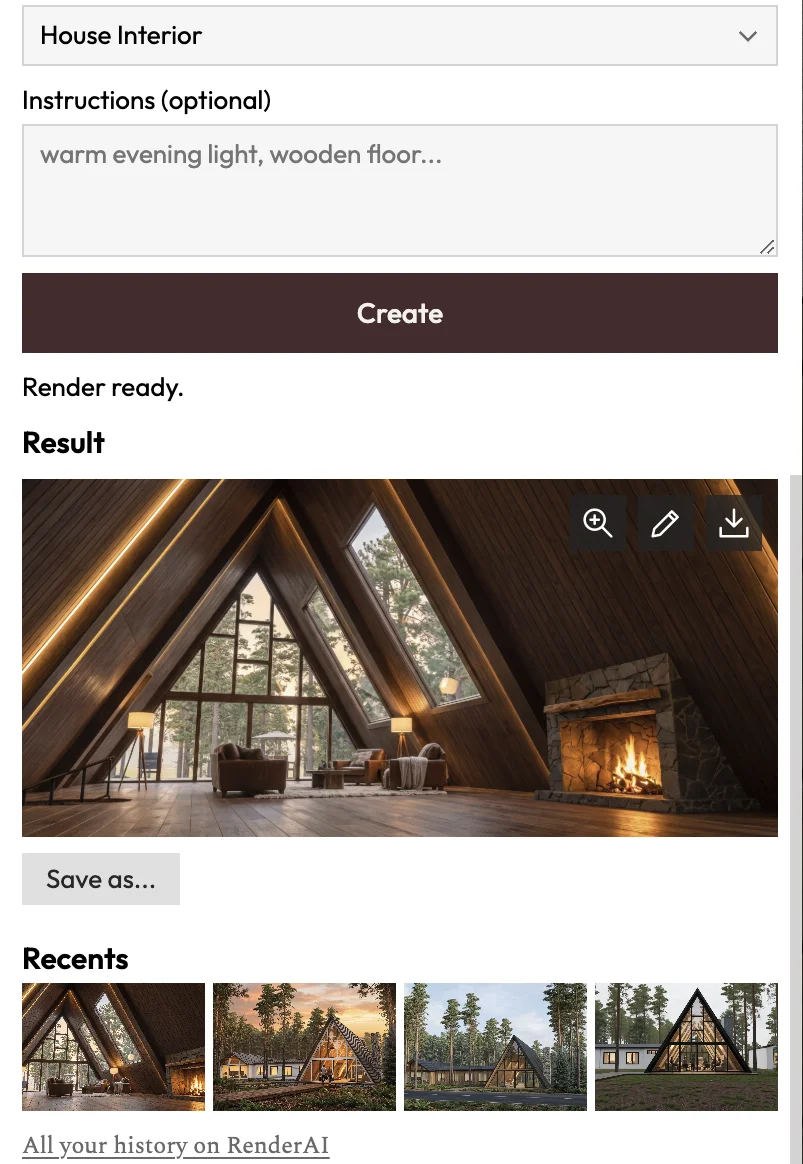
Open the result in a larger window to drag the slider between your view and the render, or zoom to 2x and 4x to check materials. The pencil icon turns a result into the next starting image, so you can change the light or a material without capturing again.
Reference images. Add up to 4 images, like a floor texture or a sofa from a supplier. Your view is Image 1 and the references are Image 2 to 5, so you can name them in your instructions: "use the floor from Image 2". References cost no extra tokens. More in Reference images.
View settings that work
The render follows what the camera sees, so set up the view before you export or capture it.
- Edges off for a photoreal result. Keep them on if you want the render to stay close to a line drawing.
- Shadows on to set the light direction and time of day.
- Textures shown so materials carry over. Plain white models give the method more freedom.
- Use a two-point perspective for exteriors so vertical lines stay straight.
Troubleshooting
The install or sign in fails
A firewall, an antivirus or a company network can block the install or the connection. Try another network if you can. If it still fails, contact us with your SketchUp version and your system (Mac or Windows and its version). In the meantime you can render in the browser.
A render fails
Failed renders return their tokens to your account. For each message and what to do, see Failed or blocked renders. If you have questions about a specific render or think the tokens weren't returned, write to us with the exact date and time and we'll check it.
Related
- SketchUp extension: what it is, supported versions and download
- From Rhino: the same two ways for Rhino
- Methods: speed, quality and tokens per method
Last updated: November 26, 2026
These guides are informational, may change without notice and may contain errors. They aren't a contractual commitment. They're subject to our terms of service.
Was this page helpful?
Thanks for telling us.