We Tested Seedance 2.5 AI Video on a Luxury Interior Space
Summarize with AI
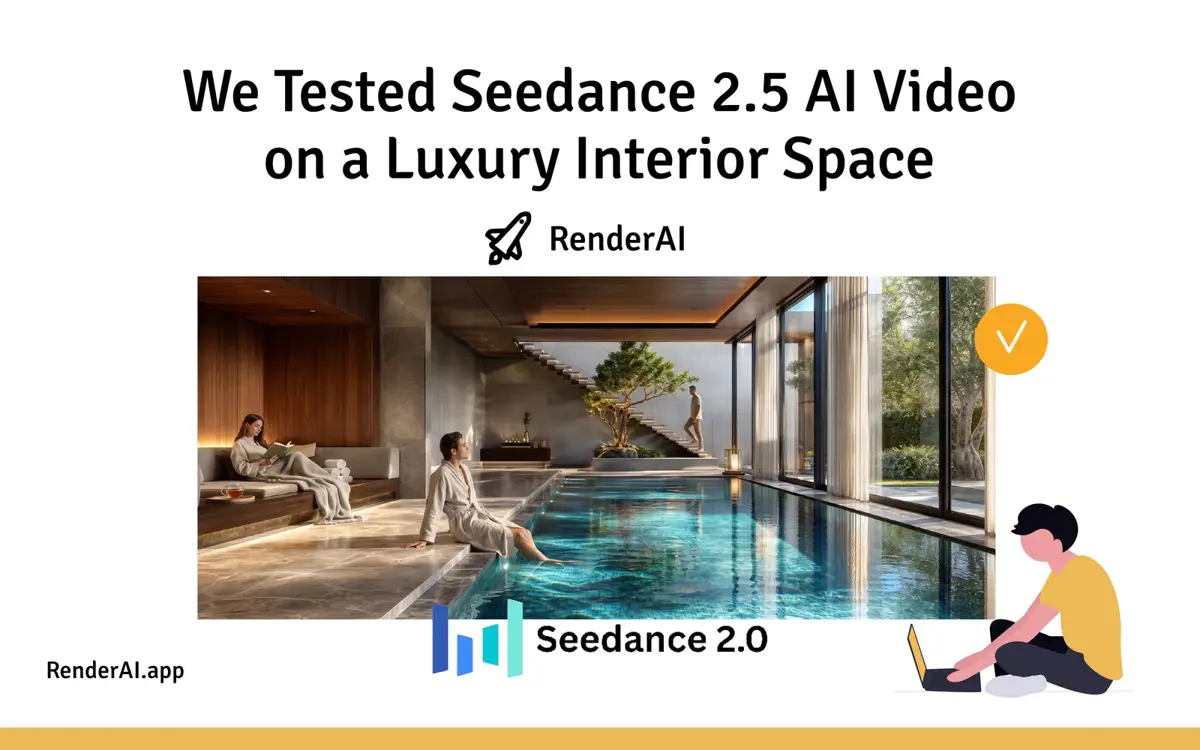
We tested Seedance 2.5 AI Video generation on a luxury indoor interior design project. From our initial review, it’s a very strong model for interior design and architectural animations. Continuity is much better than what we were used to, clips can go up to 30 seconds, and people and movement sometimes look so close enough to real footage that you have to look twice to realize they are not real.
AI video animation is a powerful tool for interior design and architectural visualization. It allows you to create realistic and engaging videos of your projects in a fraction of the time it would take to create them manually. Use it to generate quick social media posts, client-ready presentation videos, and more.
ByteDance positions it as their flagship video model. For Kling, Veo, and the rest of the field, see our AI video models roundup.
The still image
To start a 10-second AI video of an interior space like an hotel swimming pool, we first generated a prompt using a reference image with our Image Describer to later render it using Render AI. This process is super fast, drag and drop the reference image, get the prompt, render, download. Here is the prompt we got:
A luxurious indoor swimming pool area features a stunning pool with shimmering blue tiles that reflect the light beautifully. Surrounding the pool, the space is adorned with rich wooden paneling and plush seating arrangements, creating a warm and inviting atmosphere. Large windows draped with soft curtains allow natural light to flood the room, enhancing the serene ambiance. The flooring combines marble and stone textures, adding a touch of sophistication. A modern staircase leads to an upper level, while a stylish tree and tasteful lighting fixtures contribute to the overall elegance of the design. The layout is open and airy, promoting relaxation and leisure.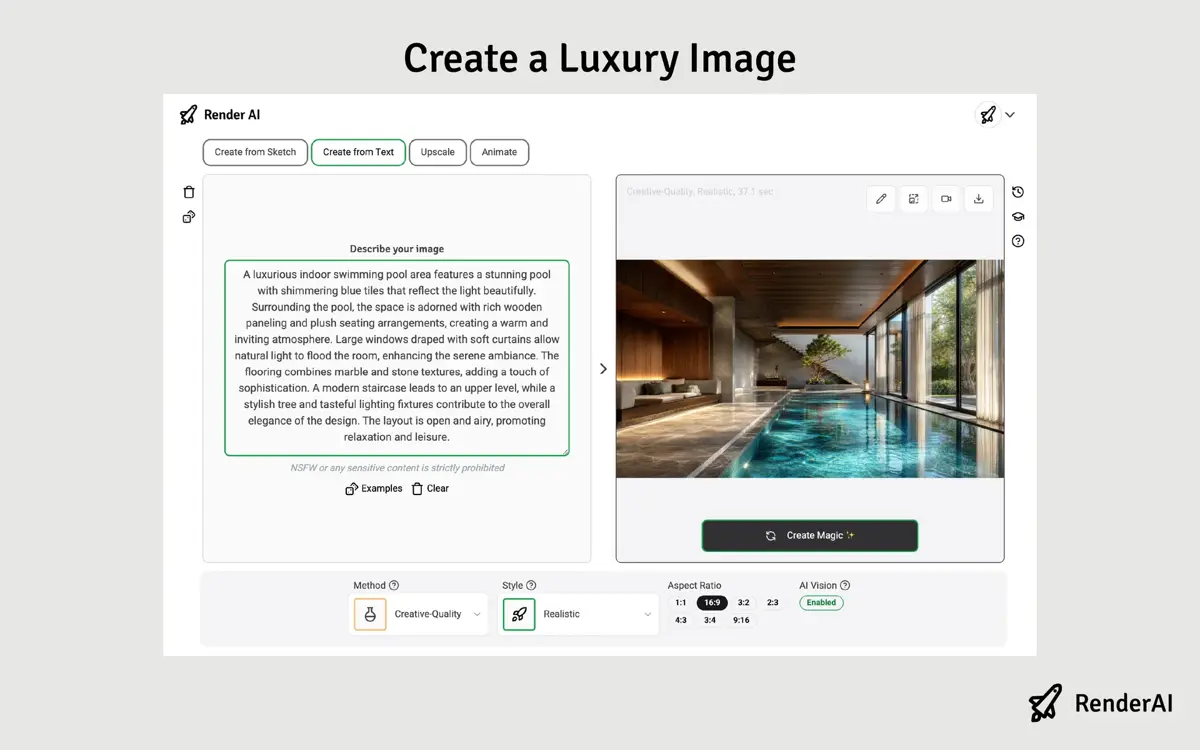
Render AI in Render mode, no source image: paste the Image Describer prompt as instructions, select Creative-Quality, generate the still. Drop, render, download.
The AI interior already looks very good. What we wanted to see was what happens if we add small movement: water, curtains, a slow orbit around the frame. And people. How realistic they look, and how they hold up once they start moving. If you care more about stills than motion, our interior rendering tools post covers that side of the workflow.
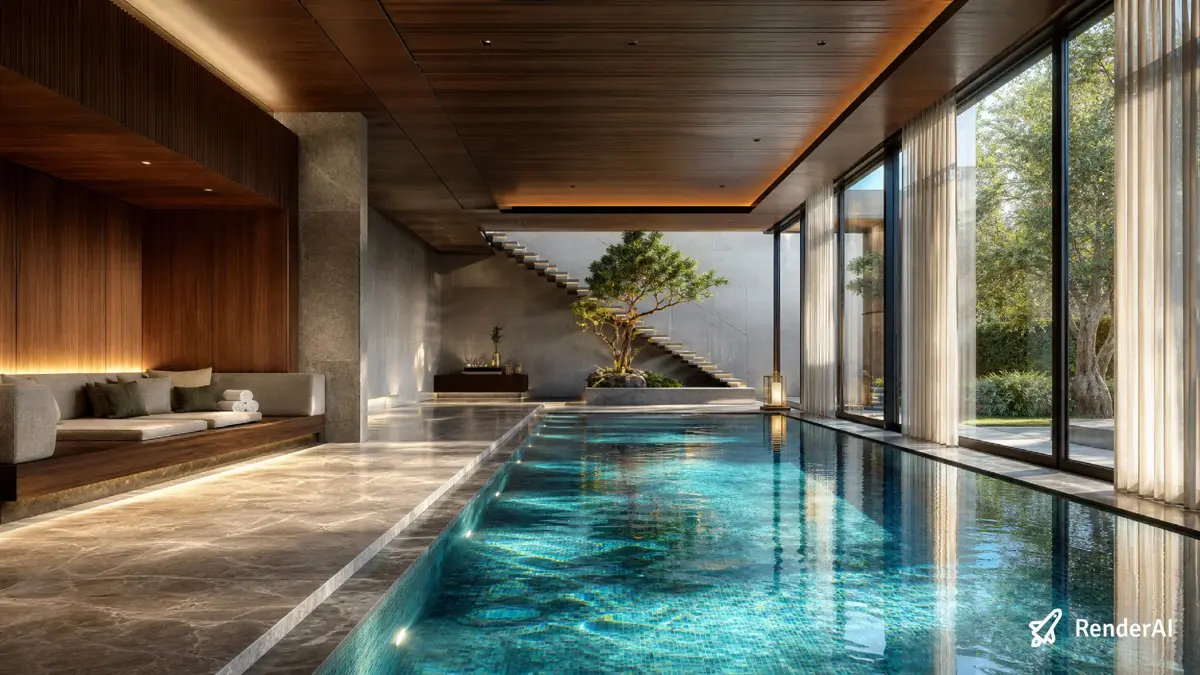
The source still without animation or people. Materials and composition have to hold up as a frame, or the video will not.
Video 1: Lighting
This was the first clip. A locked-off shot where the lighting design is the subject. Useful when you want to show the mood range of a render without inventing a camera path. For stills, we usually do that with Style Enhance and ambient effects. Here the light had to change inside the video.
We ran it in Render AI Create using Animate with the Ultra method.
Static locked-off camera, fixed composition. [0-3s] Late-afternoon sunlight slowly warms and sweeps across the stone floor. [3-7s] Natural light fades toward dusk, the garden outside gradually darkens. [7-10s] Underwater pool lights and warm cove lighting turn on, casting glowing reflections across the water surface. Sheer curtains sway gently throughout. Audio: quiet evening ambience, distant crickets, soft water ripples, No BGM.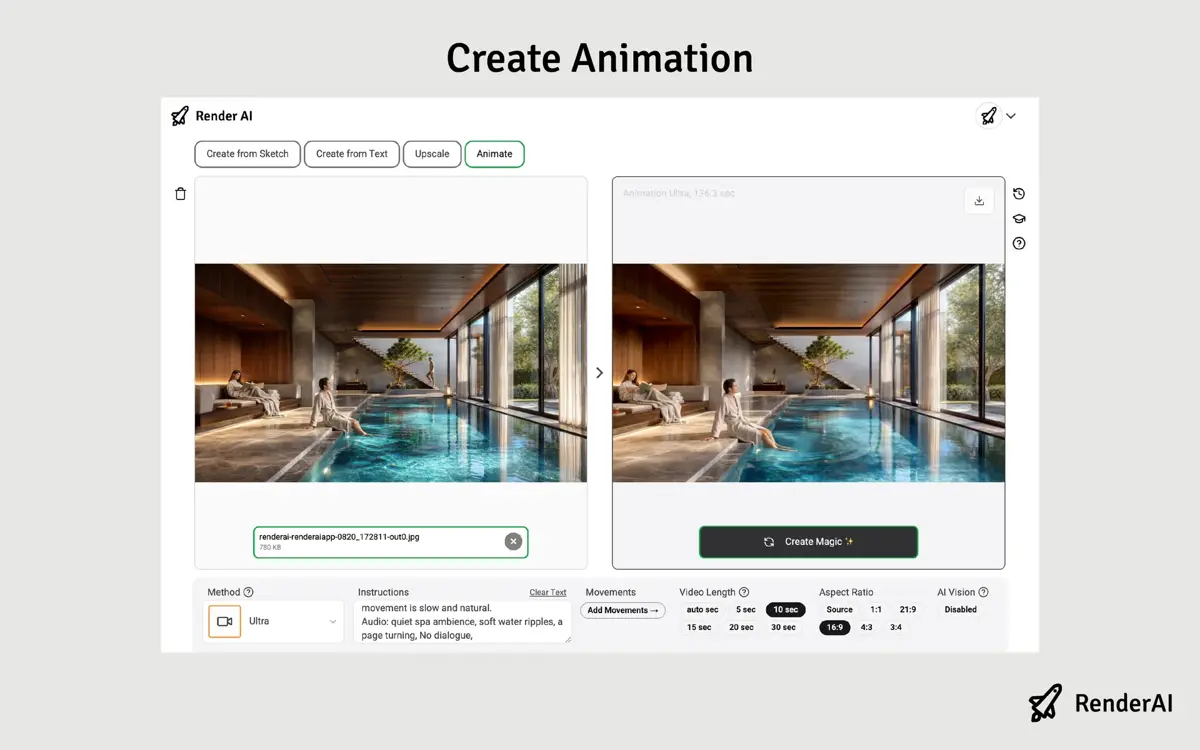
Same still in Render AI Animate, Ultra method. This is the setting used for both 10-second clips in this post.
10-second locked-off lighting pass. Afternoon sun, then dusk, then pool and cove lights. Sound on: evening ambience, crickets, water. No music.
Notice that you can indicate seconds in the prompt to control the sequence of the video. Models may not always follow the instructions perfectly, but it’s a good way to control the flow. The first pass got a bit too dark at the end but looks fine. In a production environment, you would edit the video to fix the lighting or run a few more passes. Still, it works, and it took less than 120 seconds.
Adding people
For the next test we edited the original image and asked it to add someone sitting at the pool, someone resting on the sofa, and someone starting up the stairs. The space reads more like a real interior. Same idea as dropping cutout people into a traditional render. The difference is time. This took under a minute. The old way is open Photoshop, hunt for people with matching light, cut them out, composite, export again.
We didn’t overthink the instructions. Render AI has an AI Vision integrated feature, which reads the text and the image and writes model-ready instructions on its own. We typed:
add people to the scene, one in the border of the pool resting, another one in the sofa chilling, and the last one starting going up the stairsWhich under the hood, Render AI expert analysis with AI Vision converted into this instruction automatically:
“Incorporate the following figures into the scene: one person resting on the edge of the pool, one person relaxing on the sofa, and one person ascending the stairs. Reimagine this space with professional architectural visualization quality. Preserve the exact geometry and proportions from the reference. The scene should be populated with naturally posed individuals to enhance the sense of livability and scale. Maintain the luxurious, tranquil atmosphere with warm wood paneling, soft cove lighting, and the serene indoor-outdoor transition to the lush garden. Utilize professional photography, cinematic lighting, high-detail materials and textures.”
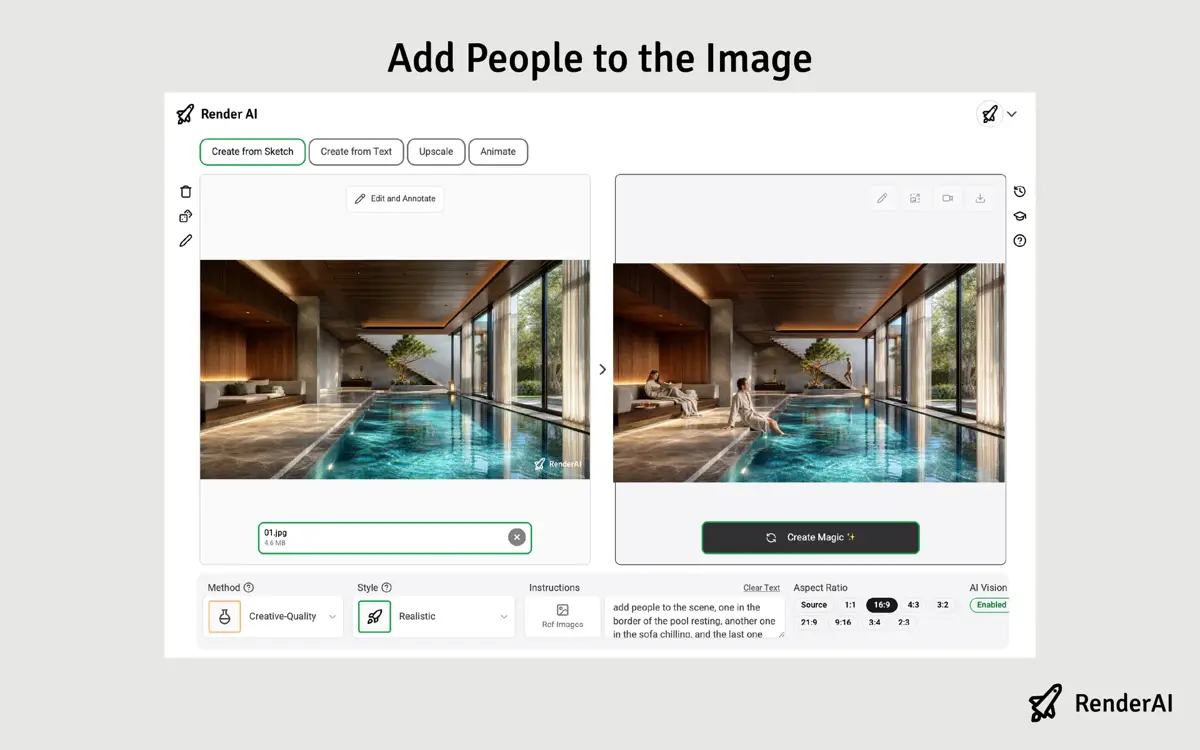
How we added people in Render AI: one short instruction. AI Vision expands it into a full brief, then composites the figures.
One messy sentence in, a full brief out that converts into a professional interior render in less than a minute.
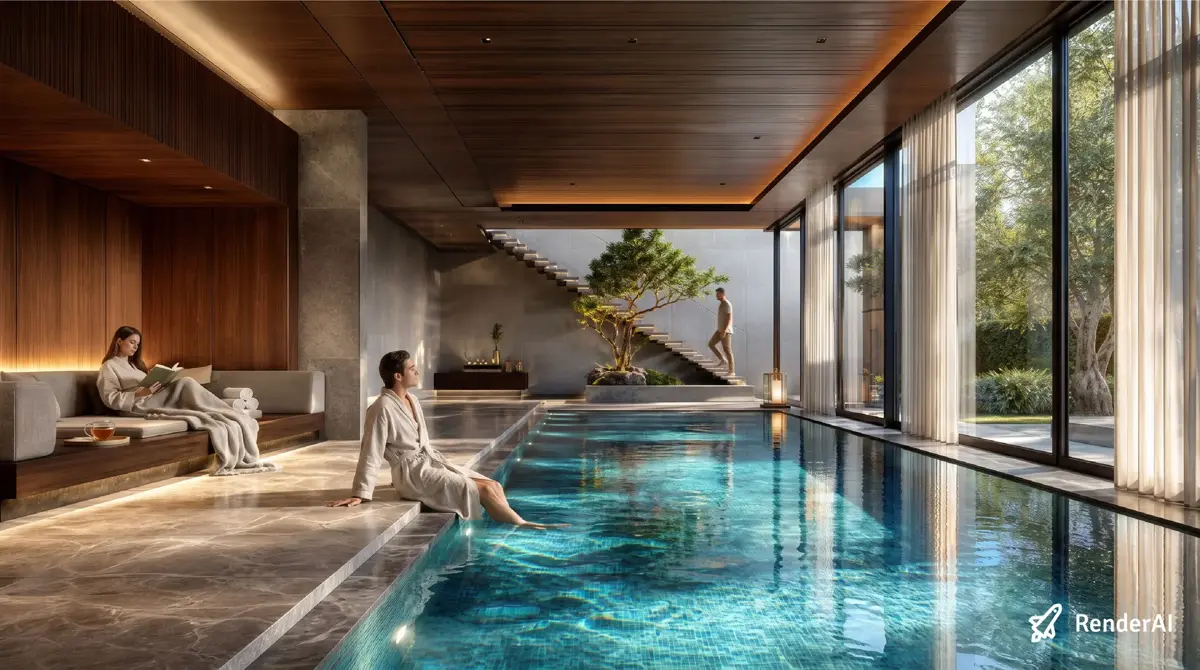
People added in Render AI in under a minute. Same geometry and lighting as the empty still, now occupied.
Video 2: People in motion
Then we used this prompt for the video, again with Animate and the Ultra method:
[0-3s] Static locked-off shot. The man in the bathrobe gently moves his feet in the pool, creating soft ripples. The woman on the lounge sofa turns a page of her book and keeps reading. Sheer curtains sway softly. [3-10s] The camera slowly pushes in toward the floating staircase at the back, while the man in white walks up the stairs at a steady, relaxed pace. [7-10s] The camera transitions into a very slow, subtle orbit arcing gently around the pool area, keeping the staircase and tree in frame, as the water shimmers and reflections move across the wooden ceiling. Keep the existing lighting, materials and composition. All movement is slow and natural. Audio: quiet spa ambience, soft water ripples, a page turning, No dialogue,Same space, now occupied. Small gestures first, then a push toward the stairs. Sound on: spa ambience, water, a page turning. Watch on YouTube.
The result is still impressive. If you zoom into a hand, you can detect some minimal AI artifacts. But for a video generated in 120–180 seconds it’s an outstanding piece. Ten seconds seem not to be enough for the orbit, so the clip only plays the first two moves. That’s expected if you stack three camera beats into a 10-second window. In a production environment, you would edit the video to fix the camera movement or run a few more passes.
The sound is clearly better on this one. Water, a page turning, quiet spa ambience. Native audio helps more when there’s something in the scene to attach it to.
More on Seedance 2.5
Seedance 2.5 is ByteDance’s current flagship for this kind of work: image-to-video, native audio, and clips up to 30 seconds. Continuity is the part that matters for interiors. Materials stay put, light doesn’t flicker, and people don’t melt when the camera starts to move.
If you want the official spec, see the ByteDance Seed announcement. For how this sits next to Kling, Veo, and the rest, the 2026 video models comparison is the longer read. That table still lists Seedance 1 Pro. 2.5 is a different generation: longer clips, better people, audio included.
You can run the same sequence at Render AI Create: still, optional people edit, then video.
Frequently Asked Questions
Does a 10-second or 30-seconds interior AI video keep materials and lighting intact?
On this test and in general, yes. Wood, stone, water, and the garden outside held their place from frame to frame. The lighting pass got a bit too dark at the end, and a 10-second clip is not long enough if you stack three camera moves. Continuity is the part that actually matters for interiors.
How do you add people to a render before turning it into video?
Edit the still first. In Render AI we typed a short instruction and let AI Vision expand it: someone at the pool edge, someone on the sofa, someone starting up the stairs. Under a minute, versus hunting cutouts in Photoshop. Then we animated that populated still. You can add people on the video but they need to “enter the frame” somehow, so consider the geometry of the scene and what’s better for the video.
Which method should I use in Render AI for this kind of clip?
Use Ultra. Upload the still at Create, add people if you need them, then generate the video with the Ultra method. That is the setting we used for both tests in this post.
References:
- ByteDance Seed
- Top 15 AI Video Models 2026 for Architects, Designers & Marketers
- Top AI Interior Rendering Tools
- Transform Any Interior with Render AI Style Enhance
- AI Rendering Tools for Architecture and Product Design
- Render AI Image Describer
- This content combines Render AI testing and AI-assisted research with human editing
About the Author:
This article was written by Francisco. Architect, Visual Designer & Founder of RenderAI.