Top 10 AI Image Upscalers for Architects and Designers (2026)
Summarize with AI

AI rendering has made it fast for architects, interior designers and engineers to get convincing visuals out of heavy scenes, whether they come from a traditional render engine or from an AI rendering workflow. A 2K render that looks fine in the viewport dies on an A1 board.
That matters because resolution is where a render is judged. Client decks are shown on 4K screens, competition boards are printed at A1, and marketing imagery ends up on billboards and building hoardings. At those sizes, facade mullions, tile coursing, handrail spacing and material transitions have to read cleanly, and a soft 1600 px render doesn’t survive the trip.
AI image upscalers close that gap. You render or generate a solid draft at a lower resolution, then let a super-resolution model reconstruct pixels, recover texture and sharpen linework for final delivery. That can drop an entire high-resolution render pass from the schedule. Miss the settings and you get windows that were never in the design.
This guide covers the ten upscalers worth knowing in 2026, what each one is good at, the resolution you need per deliverable, and where the process goes wrong.
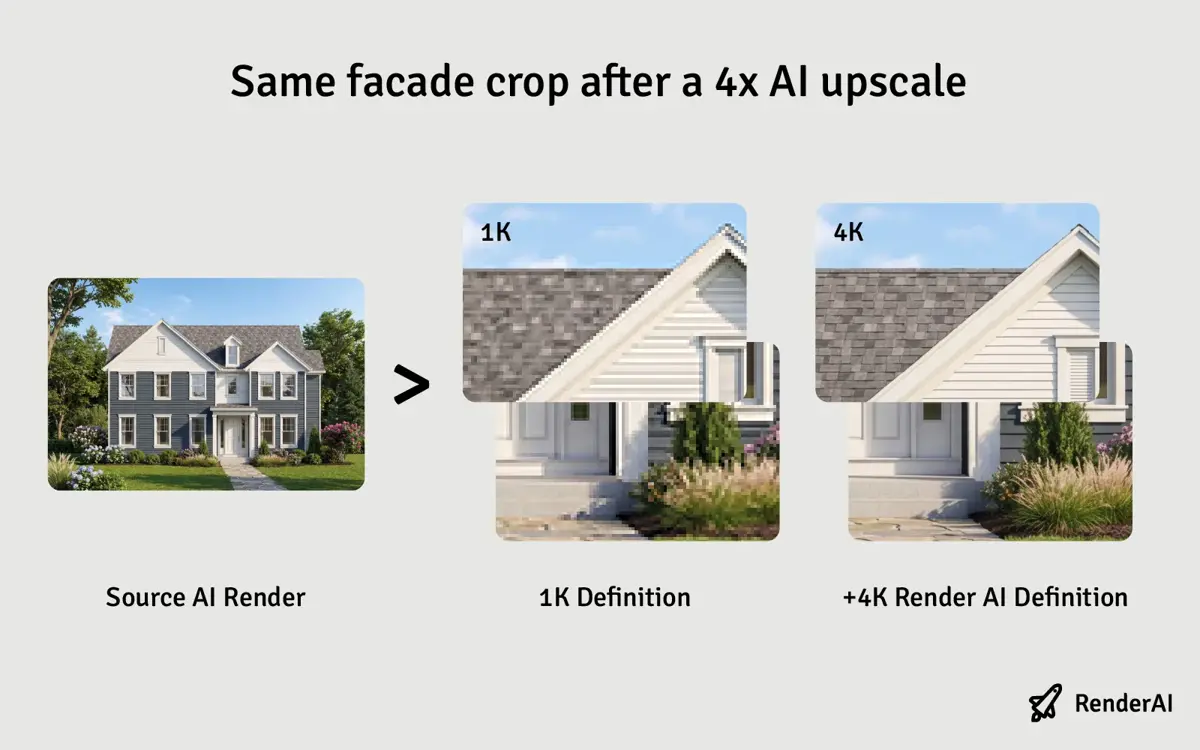
1K crop vs 4x upscale. This is the scale clients actually look at. By M. Buster, made with Render AI.
- Why AI Upscaling Matters for AEC Visuals
- How AI Image Upscaling Works
- What Makes a Good Architectural Upscaler
- How We Chose These Tools
- Quick Comparison of AI Upscalers
- The 10 Best AI Image Upscalers for Architects in 2026
- Also Worth Testing in 2026
- Resolution Targets by Deliverable
- Where AI Upscaling Fits in Your Workflow
- What Goes Wrong: Artifacts and Hallucination
- Checklist for Choosing Your Stack
- Frequently Asked Questions
- Conclusion
Why AI Upscaling Matters for AEC Visuals
In architecture and interior design, resolution isn’t a cosmetic detail. It’s tied directly to legibility, perceived quality and trust. A pixelated marble on a competition board reads as carelessness even when the design behind it is excellent.
The traditional answer is to re-render the scene at 4K or 8K in V-Ray, Corona, Enscape, D5 or Twinmotion. The problem is arithmetic. Doubling resolution quadruples the pixel count, and ray-traced render time scales roughly with pixels:
| Output | Pixels | Render Cost |
|---|---|---|
| 2K (2048 × 1152) | 2 MP | 1x |
| 4K (3840 × 2160) | 8 MP | ~3.5x |
| 6K (6144 × 3456) | 21 MP | ~9x |
| 8K (7680 × 4320) | 33 MP | ~14x |
A hero interior that takes 40 minutes at 2K becomes a nine-hour job at 8K, and that’s per camera, per option, per revision round. Multiply it across a five-image board set with three material variants and the render farm becomes the schedule. If you outsource images, that directly means more expensive contracts.

Example of bicubic resize in traditional software such as Adobe Photoshop. The image gets bigger, but edges soften and material detail disappears. Classic interpolation can't invent what was never there. By Studio Baha.
AI upscaling changes the shape of that problem. You render at 1K–2K where iteration is cheap, lock the lighting and composition, and reconstruct the final resolution in a step measured in seconds or minutes. Chaos, whose upscaler ships inside Chaos Cloud, frames it the same way: the point is to minimize the need for long high-resolution render times while keeping crisp geometry and clean linework.
Because super-resolution models reconstruct pixels instead of stretching them, they are particularly effective on the details clients scan first: window mullions, balustrades, tile and brick coursing, furniture edges, fabric weave and small text labels.

Same scene as previous image, high-quality result with Render AI. Crisp geometry and materials that still read when someone zooms in. By Studio Baha, made with Render AI.
How AI Image Upscaling Works
Classic interpolation (bicubic, Lanczos) averages neighboring pixels. It can only redistribute information that already exists, which is why an enlarged render looks softer, not sharper.
AI super-resolution models are trained on millions of low-resolution and high-resolution image pairs. The model learns what edges, textures and materials should look like at higher resolution, then predicts the missing pixels for a new input. Two broad families are in use in 2026:
- Regression / GAN-based models (Real-ESRGAN and its descendants, the models behind Upscayl and most of Topaz’s non-generative lineup). They are fast, deterministic and conservative. They sharpen what is there and rarely invent information.
- Diffusion-based generative models (Magnific’s Creative mode, Adobe’s Firefly Upscaler, Krea’s Enhancer, Topaz’s Redefine and Wonder models, even Google Nano Banana Pro at 4K). They synthesize plausible new detail: pore-level texture on concrete, individual leaves on a tree, weave in a curtain. More impressive, and much more willing to be wrong.
The practical consequence is that almost every serious tool now exposes a fidelity-versus-creativity dial. Magnific ships explicit Creative and Precision modes, Adobe separates Generative Upscale from the more literal Super Resolution, and Topaz splits its model list between faithful models like High Fidelity and generative ones like Redefine.
For architecture, that dial matters more than the scale factor. Turn it up for a mood board, and turn it down for anything a client might measure.
What Makes a Good Architectural Upscaler
Generic photo-upscaler reviews optimize for skin texture and landscape foliage. AEC work fails in different places:
- Geometry fidelity. Straight lines must stay straight and parallel lines must stay parallel. A model that lets a curtain wall drift by two pixels over a 6,000 px span produces a visibly bowed facade.
- Brick coursing is unforgiving. If the rhythm drifts by a half-module, even a client who can’t name the problem will feel it. Same for tile grids, louvers and parquet.
- Line and type clarity. Plans, sections, axonometrics and detail callouts depend on hairlines and 6 pt type surviving the enlargement. Models tuned for line art, text and CG content handle this; photo-tuned models smear it.
- Material honesty. Architectural images mix mirror-flat glass, matte plaster, noisy stone and fabric in one frame. A good upscaler sharpens each appropriately instead of applying one global texture pass.
- Competition sets and real-estate catalogs mean hundreds of images. One-at-a-time upload doesn’t scale past a single board.
- Confidentiality. Competition entries and unreleased developments are often under NDA. Some studios can’t upload them to a third-party server at all, which makes local processing a hard requirement rather than a preference.
How We Chose These Tools
Every tool below is either widely used in visualization practice, explicitly marketed for designer workflows, or the de facto standard in its category (open source, print, Adobe ecosystem). Some specifications were verified against each vendor’s own documentation in 2026. Several widely repeated numbers, including Topaz’s maximum upscale factor and Adobe’s current capabilities, are out of date in most articles still circulating. Vendor pages change; check the current limits before you buy.
Full disclosure: we build Render AI! All entries are here on merit, and we’ve flagged the limitations of our own tool alongside everyone else’s.
Quick Comparison of AI Upscalers
| # | Tool | Best for | Max scale / output | Runs | Architectural strength |
|---|---|---|---|---|---|
| 1 | Render AI Upscale | End-to-end AI rendering, Create → Edit → Upscale | +6K print resolution | Web | Geometry-preserving upscaling inside an archviz-tuned pipeline; commercial rights included |
| 2 | Topaz Gigapixel | Desktop power users who want model-level control | Up to 16×; 30,000 px via the Photoshop plugin | Desktop + plugin | Dedicated Text & Shapes, Art & CG and High Fidelity models for non-photographic content |
| 3 | Chaos AI Upscaler | V-Ray, Corona, Enscape and Envision users | Up to 16K | Chaos Cloud | Native to the archviz pipeline; denoises while preserving linework |
| 4 | Krea Enhancer | Fast 4K–16K upgrades of interior and exterior renders | 2×/4×/8×/16×, up to 22K | Web | Architecture-specific presets; 7 upscaling models including Topaz under one subscription |
| 5 | Adobe Generative Upscale | Studios already living in Photoshop and Lightroom | 2× or 4×; Firefly to 6144 px | Desktop | Sits inside the retouch and compositing workflow; Topaz models available as partners |
| 6 | VanceAI Image Upscaler | Quick, low-friction resolution boosts | 8× online, 40× desktop | Web + Windows | Simple controls for noise and sharpening; fine for references and diagrams |
| 7 | Let’s Enhance | Print-ready boards and large-format output | Up to 16×, 256–512 MP by plan | Web + API | Print-size and DPI presets; conservative modes for linework |
| 8 | Magnific AI | Creative, detail-rich concept imagery | Up to 16×, Creative and Precision modes | Web + API | Adds atmosphere and micro-detail to mood and competition imagery |
| 9 | Upscayl | Local, confidential and open-source workflows | 2×–4×, up to 16× chained | Desktop (Win/Mac/Linux) | Nothing leaves your machine; strong on stylized and line-heavy visuals |
| 10 | Bigjpg | Diagrams, artwork and graphic-style visuals | Up to 16x | Web + API | Clean outlines on flat-color and illustrative imagery |
We run Render AI Upscale on our own output and keep Gigapixel around for Photoshop round-trips. That pairing covers most of what a small studio actually ships.
The 10 Best AI Image Upscalers for Architects in 2026
1. Render AI Upscale
Render AI Upscale is built as the last step of an end-to-end pipeline rather than a standalone utility: Create the concept from a sketch, CAD export or text prompt, Edit materials, lighting and details, then Upscale to presentation resolution, up to +6K, without leaving the browser or re-uploading between tools.
Because everything is tuned for architectural and design content, it prioritizes geometry, materials and lighting over creative reinterpretation. Facades stay planar, glazing patterns stay on their grid, and material transitions stay where you put them, which is what makes it safe for client-facing renders, facade studies and documentation imagery. Custom and source-matched aspect ratios mean you can prepare a 16:9 deck slide, a 3:4 board crop and a 4:5 social asset from the same base image without reframing the scene.
The practical advantage over a standalone upscaler is that the upscale inherits everything upstream. Style presets, focal length, prompt and edit history stay attached to the image, so a revision means re-running one step rather than rebuilding the chain. Every output ships with commercial rights and no watermark.
Limitations: it’s a web platform, so it doesn’t slot into an offline or air-gapped pipeline, and it’s designed around architectural and interior imagery rather than general photo restoration.
Best for: studios that want concept-to-deliverable in one place, and anyone who wants upscaling to be a setting rather than a separate application.
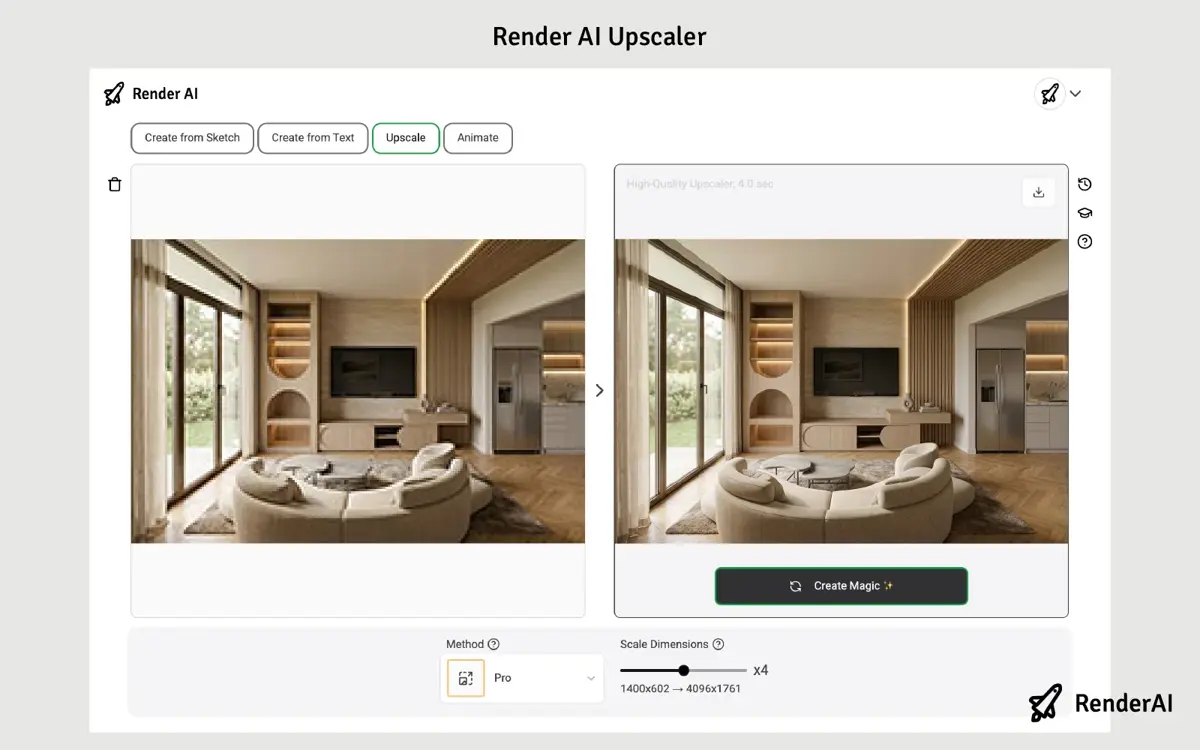
Render AI Upscale runs as a step inside the same workspace where the render was created, so settings and history stay attached to the image. By J. Llefaithp, made with Render AI.
2. Topaz Gigapixel
Topaz Gigapixel remains the reference desktop upscaler for photographers and CG artists, and it’s the tool most archviz studios reach for when they want control rather than convenience. The 2026 version upscales up to 16×, runs locally on your GPU on Apple Silicon and Windows, and works as a plugin inside Photoshop (via the Automate menu) and Lightroom Classic, where the plugin path tops out at 30,000 px on the long edge.
Its real advantage for AEC work is the model list. Alongside general-purpose Standard, Standard Max and High Fidelity models, Gigapixel ships Text & Shapes and Art & CG models built specifically for non-photographic content, which is what a clean render, an axonometric or a diagram is. The generative Recover, Redefine and Wonder models sit at the other end of the dial for when you want invented detail.
A typical archviz pattern: render at 2K, run Art & CG or High Fidelity at 4×, and land at 8K with facades, railings, vegetation and props intact, with no second render pass. Batch processing handles a full board set unattended.
Limitations: it moved to subscription-first pricing in October 2025 ($149/year Personal, $499/year Pro), commercial use is restricted on the Personal tier, and picking the wrong model is easy. The generative models will happily redraw a handrail.
Best for: render studios that want per-image model control and a local, offline-capable workflow.

Model choice matters more than scale factor in Gigapixel. Art & CG and Text & Shapes are the archviz-relevant entries.
3. Chaos AI Upscaler
Chaos AI Upscaler is a machine-learning upscaler built into Chaos Cloud Collaboration, available to V-Ray, Corona, Enscape and Envision users. It takes low-resolution drafts up to 16K entirely in the cloud: upload the image, open the edit panel, upscale. No plugin, no separate application, no export round-trip. It also shipped inside V-Ray 7.2 for SketchUp in October 2025.
Chaos designed it around the failure modes described above. The stated priority is preserving crisp geometry, clean linework, sharp textures and subtle lighting detail without oversmoothing or introducing artificial artifacts. It also denoises grainy outputs, which is the other half of the low-sample-count strategy: render fewer samples and fewer pixels, then recover both in one pass. Chaos’s own example is taking a 2K render to 8K for a competition board.
Limitations: it’s tied to the Chaos ecosystem and Chaos Cloud, it’s cloud-only (so NDA-sensitive work needs a policy check), and it was still in public beta at the time of writing.
Best for: studios already standardized on V-Ray, Corona or Enscape who want upscaling to be a native pipeline step rather than a new subscription.
4. Krea Enhancer
Krea maintains an architecture-specific landing page for a reason: turning rough, low-resolution visuals into clear 4K, 8K or 16K images is one of its most-used workflows. The Enhancer scales 2×, 4×, 8× or 16× in one click and supports outputs up to 22K, typically in seconds to a minute depending on target resolution and load.
The differentiator in 2026 is model breadth. A single Krea subscription unlocks seven upscaling models, including Topaz Photo and Topaz Gigapixel, so you can compare a faithful pass against a generative one on the same image without buying two products. For a design team, that’s a cheap way to find out which model your particular render style responds to. We’ve covered Krea’s real-time generation workflow before; the Enhancer is the production end of the same platform. Models lean creative by default, which is excellent for concept work and risky for documentation, so test before you trust the default.
5. Adobe Generative Upscale & Super Resolution
Adobe now offers two distinct upscaling paths, and most articles still describe only the older one.
Super Resolution lives in Camera Raw, reachable from both Photoshop and Lightroom, and doubles linear resolution, which works out to roughly four times the pixels. It’s literal and conservative, works on RAW, JPEG and TIFF, and performs best on clean source files that already contain real detail.
Generative Upscale is the newer feature and a real step up: 2× or 4× output using the Firefly Upscaler (restoring up to 6144 × 6144 px), with Topaz Gigapixel and Topaz Bloom available as partner models inside Photoshop. That last point is the practical headline: you can drive Topaz’s models from the Photoshop workflow you’re already in.
Either way, the value for AEC teams is that upscaling happens in the same environment as color grading, entourage compositing, sky replacement and board layout. We covered Photoshop’s generative tooling before; this is the resolution half of the same story. 4× is the ceiling on Generative Upscale, and Super Resolution alone won’t carry a 2K render to A1 — still the right place to upscale if the file is already in Photoshop.
6. VanceAI Image Upscaler
VanceAI is the low-friction option: a browser tool that enlarges up to 8× online, with a Windows desktop application that goes to 40×, plus straightforward controls for noise reduction and sharpening strength.
For architectural use it works best as a utility rather than a hero-image tool, so think reference photography, site images, exported diagrams and quick client-preview crops. Independent 2026 testing found the improvement genuine and pixelation cleanly removed, but noted surface texture reading slightly smoother and structure a little flatter than the leaders. Fine for site photos and diagrams. Don’t send an A0 hero through it.
7. Let’s Enhance
Let’s Enhance is built around print. It upscales up to 16× per dimension, with output ceilings of 256 megapixels on personal plans and 512 megapixels on business plans, and it frames its whole interface around hitting 300 DPI at a given physical size rather than around scale factors.
That framing is the right one for architecture. Competition panels, exhibition boards, canvas prints and office-wall installations are specified in millimeters, not pixels, and Let’s Enhance will tell you whether your source can get there. Six super-resolution models cover different content types, including a conservative option for imagery with small text or linework and a Digital Art model for stylized and AI-generated work. An API is available for batch pipelines. Cloud-only and credit-based; aggressive models can over-texture plaster and concrete, so check those surfaces. Use it when the physical size is fixed and 300 DPI is non-negotiable.
8. Magnific AI
Magnific AI, acquired by Freepik in 2024 and now available through Freepik’s Upscaler and API, is the most aggressive tool on this list, and the most impressive when that’s what you want. Most CGI studios we talk to already have a Magnific login. It upscales up to 16× in two clearly separated modes:
- Creative reimagines and adds detail: pore-level texture on concrete, individual leaves, weave in upholstery, grain in timber. Excellent on 3D renders and illustration.
- Precision, introduced in mid-2025, upscales faithfully without inventing detail. That’s the mode to use when the geometry has to survive.
For architecture, Magnific earns its place on early-stage concept renders, mood imagery and stylized competition boards, where a bit of invented richness reads as craft rather than error. It’s the tool that makes a rough Nano Banana or Midjourney concept look like it came from a studio. Creative mode will redesign your facade if you let it — invented mullions, altered glazing, garbled signage. It’s also the priciest option here, from $39/month at the Pro tier up to $299/month for Business. Use it for concept and marketing, not documentation.

Magnific packs a lot of dials into one screen. For architects who just need a sharp deliverable fast, that density is the opposite of a quick workflow — powerful when you want creative control, slow when you want the job done.
9. Upscayl
Upscayl is free, open source, and runs entirely on your own machine on Windows, macOS and Linux using Real-ESRGAN-family models with Vulkan GPU acceleration. Six models ship by default (General Photo, UltraSharp, Remacri, Ultramix Balanced, High Fidelity and Digital Art), and you can load community models on top. A Double Upscayl option chains two passes for up to 16× total. Batch processing works on a whole folder.
The reason most AEC teams end up installing it isn’t output quality. It’s confidentiality. Competition entries, unreleased developments and client work under NDA never leave your hardware, which sidesteps the procurement and legal conversation that cloud tools trigger. It also performs well on stylized, non-photorealistic and line-heavy imagery, where edge-focused models produce crisp output from small originals. Independent testing in 2026 highlighted its flexibility through customizable open-source models. On photoreal print, paid tools still look better on vegetation, fabric and glass. No support contract, and you pick models by trial. Worth installing for NDA work and as a zero-cost baseline.
10. Bigjpg
Bigjpg uses deep convolutional networks to enlarge up to 16× with adjustable noise-reduction levels, dedicated handling for illustration versus photographic content, batch uploads, and an API on paid plans. A free tier covers 20 images per month at up to 4×.
It’s popular with illustrators, and that’s where its architectural value sits too: flat-color and graphic content. Diagrams, analytical drawings, exploded axonometrics, concept collages and NPR visuals come out with clean outlines and no invented photographic texture. Use it for diagrams. Skip it for photoreal.
Also Worth Testing in 2026
The category is moving fast, and three more tools came up repeatedly in independent 2026 testing:
- Aiarty Image Enhancer. Combines upscaling with denoising in a single pass, reaching 4K, 16K and 32K outputs while, in PetaPixel’s testing, preserving the natural character of the image rather than producing the “plastic look” that plagues aggressive upscalers.
- Clarity / Recraft Clarity Upscaler. Photorealistic results up to 16× (capped around 64 MP), with an explicit creativity parameter that lets you dial between strict fidelity and stylized reinterpretation. Available through APIs, which makes it easy to prototype into a pipeline.
- ON1 Resize AI. The quietest of the group, and specifically strong at clean, large-format enlargements with consistent geometry. Worth a look if your output is predominantly print.
None of these displaced the main ten for architectural work, but all three are credible and worth a trial before you commit to an annual plan.
Resolution Targets by Deliverable
Picking a scale factor in the abstract is the most common mistake. Work backwards from the deliverable instead. The table below assumes a 2K render (2,048 px on the long edge) as the starting point.
| Deliverable | Physical size | Practical DPI | Target pixels | Upscale from 2K |
|---|---|---|---|---|
| Client deck on a laptop / Zoom review | 1920 × 1080 screen | n/a | 1,920–2,560 px long edge | 1x |
| 4K screen or boardroom TV | 3840 × 2160 screen | n/a | 3,840 px long edge | 2x |
| A3 handout | 297 × 420 mm | 300 | 3,508 × 4,961 | ~2.5x |
| A2 board | 420 × 594 mm | 250 | 4,134 × 5,847 | ~3x |
| A1 competition panel | 594 × 841 mm | 200 | 4,677 × 6,622 | ~3.3x |
| A0 exhibition panel | 841 × 1189 mm | 150 | 4,967 × 7,022 | ~3.5x |
| 2 × 1 m trade-show banner | 2000 × 1000 mm | 120 | 9,449 × 4,724 | ~4.6x |
| Instagram feed post | screen only | n/a | 1,080 × 1,350 | 1x (downscale) |
Two things worth noting here. First, large-format print needs less DPI than people assume, because viewing distance grows with print size. An A0 panel read from a meter away doesn’t need 300 DPI, and insisting on it doubles your file sizes for no visible gain. Second, almost every real deliverable sits between 2x and 4x. The 8x and 16x headline numbers are marketing, and they’re rarely the right setting for a render that has to stay accurate. Also, they make all exports slower, file sizes higher, and many other downsides to consider.
Where AI Upscaling Fits in Your Workflow
Upscaling works best as a deliberate pipeline stage, not a rescue operation at 11pm before a submission. A typical architecture or interior workflow:
1. Render or generate at low resolution. Produce the base image at 1K–2K in your render engine or AI rendering tool. Lock lighting, composition, materials and focal length here, where iteration costs minutes rather than hours. This is also where sample counts can be dropped, since a good upscaler denoises as it enlarges.
2. Choose the right upscaler for the image type. Photoreal hero shot destined for a client → a fidelity-first tool (Render AI Upscale, Chaos, Topaz High Fidelity). Concept or mood image → a creative tool (Magnific Creative, Krea). Diagram, plan or axonometric → a line-tuned model (Topaz Text & Shapes, Bigjpg, Upscayl). Print with a fixed physical size → Let’s Enhance.
3. Upscale in moderate steps. Two 2× passes generally beat one 4× jump, and three passes beat one 8×. Each pass hands the model a cleaner input, which suppresses halos, wobbling lines and plastic surfaces.
4. Review at 100%, then finish in post. Inspect glazing patterns, coursing, handrails, signage and any text at full zoom before layout. Then bring the result into Photoshop or Lightroom for grading, entourage, annotations and board assembly, with Generative Upscale available for a final bump if a crop comes up short.
For plans, sections and technical drawings exported from CAD or BIM, stay conservative: line-clarity modes, minimal creativity, and a preserved original. Studios running a BIM-to-AI pipeline should treat the un-upscaled render as the master of record and the upscale as a presentation derivative.

A photoreal interior where fabric weave, soft daylight and people have to hold up at close inspection. By L. Abinader, made with Render AI.
What Goes Wrong: Artifacts and Hallucination
As PetaPixel put it in its 2026 round-up, the biggest difference between today’s upscaling software “isn’t resolution. It’s how they handle fidelity.” These are the failure modes that actually reach clients:
- Invented glazing bars and mullions. A generative model reads a curtain wall and decides it needs more subdivisions. The facade now has a pattern the drawings do not.
- Drifting repeat patterns. Brick coursing, tile grids and louvers lose their rhythm across the frame. It’s subtle, and instantly wrong to anyone who has detailed a facade.
- Garbled signage and labels. Text is the single most reliable tell of an over-aggressive upscale. Anything smaller than about 20 px in the source will come back as convincing nonsense.
- Plastic vegetation and fabric. Trees turn into a uniform texture; curtains and rugs get an artificial sheen.
- Wobbling straight lines. Long horizontals like parapets, mullion runs and ceiling coffers develop a slight bow at high scale factors.
- Halos on high-contrast edges. A bright sky against a dark parapet is where over-sharpening shows first.
Mitigations, in order of effectiveness:
- Lower the creativity setting before changing tools. Most bad output is a settings problem.
- Upscale in smaller steps rather than one large jump.
- Mask and composite. Upscale the facade conservatively, upscale the sky and vegetation creatively, and combine in Photoshop. Ten minutes of masking beats an hour of re-running.
- Keep an un-upscaled master. For any image that might end up in a planning submission or a tender document, the original render is the version of record.
- Zoom to 100% and pan the whole frame, not just the thumbnail. Every artifact in this list is invisible at fit-to-screen.
Checklist for Choosing Your Stack
Do you need end-to-end AI rendering, or just upscaling?
- If you want Create → Edit → Upscale in one place, a platform built around Render AI gives you a coherent path from concept to +6K output with no export round-trips.
- If you already have a stable render or BIM pipeline, Magnific or Chaos AI Upscaler plug in as specialized stages without changing how you render.
Is your priority fidelity or creativity?
- Fidelity first: Render AI Upscale, Chaos AI Upscaler, Topaz (High Fidelity / Text & Shapes / Art & CG), Adobe Super Resolution, Let’s Enhance in conservative mode, Upscayl. Use these for anything client-facing or documentary.
- Creativity welcome: Magnific Creative, Krea’s generative models, Topaz Redefine, Bigjpg’s artwork mode. Use these for mood boards, concept imagery and marketing.
Most studios end up owning one of each, which is a reasonable outcome rather than a failure to decide.
What about confidentiality?
- Cloud tools mean uploading in-progress designs to a third party. If your competition entries or client work sit under NDA, resolve that before choosing. Upscayl and Topaz run locally; everything else on this list doesn’t.
What about scale and automation?
- Small studio: one fidelity tool plus Adobe is usually enough.
- Larger practice or real-estate platform: prioritize batch and API access, so Let’s Enhance, Bigjpg, Magnific via Freepik, VanceAI, or Chaos AI Upscaler through Chaos Cloud for teams already there.
Frequently Asked Questions
What is the best AI image upscaler for architectural renders in 2026?
For client-facing renders that must keep geometry intact, Render AI Upscale, Chaos AI Upscaler and Topaz Gigapixel are the safest options. For mood boards where invented detail is welcome, Magnific AI and Krea’s Enhancer. Most studios run one of each.
Can AI upscaling replace rendering at high resolution?
For decks and print, usually. A 4K ray-trace costs about four times a 2K, an 8K about sixteen times; upscaling fills those pixels in minutes. Keep the high-res render when someone might measure the image: construction docs, facade surveys, contractor markups.
What resolution do I need for an A1 competition board?
At 200 DPI, about 4,677 × 6,622 px. 300 DPI is 7,016 × 9,933. Jurors stand a meter away, so 200 DPI is enough. From a 2K render that’s a 3x–3.5x upscale.
Will AI upscaling change my design geometry?
It can. Generative modes add glazing bars, redraw handrails, or garble signage. Use precision or low-creativity settings for client work, check at 100% zoom, and keep the original render as the master.
Is it better to upscale once at 8× or twice at 2×?
Two or three moderate passes usually beat one 8× jump. The exception is tools built for a single high-factor pass, like Chaos AI Upscaler at 16K.
Are there free AI upscalers good enough for professional work?
Upscayl is free, local, and good enough for NDA work and line-heavy drawings. For photoreal print, paid tools still look better on vegetation, fabric and glass.
Conclusion
AI upscaling is now a normal stage of AI rendering workflows for architects, interior designers and engineers. Render at 1K–2K where iteration is cheap, then reconstruct resolution in seconds instead of parking an 8K job on the farm. Match the tool to the image, work backwards from print size, and check at 100% before it leaves the studio.
Whether you build around Render AI, desktop tools like Topaz and Adobe, cloud platforms like Krea, Let’s Enhance and Magnific, or a local setup with Upscayl, get that pairing right and a 2K draft is an A1 board, without the render farm bill.
References:
- Topaz Gigapixel, Topaz Labs. Official product page with the current AI model list, upscale limits and 2026 subscription pricing.
- Introducing Chaos AI Upscaler: From Low-Res to Stunning 16K, Chaos Blog. Official announcement covering supported products, workflow and resolution limits.
- Enhance Image Quality with Generative Upscale, Adobe Photoshop Help. Documentation for Generative Upscale, Firefly Upscaler and the Topaz partner models.
- AI for Architecture, Krea. Architecture-specific rendering and enhancement workflows, including 4K–16K upscaling.
- Let’s Enhance. AI image upscaler with print-oriented presets, model selection and per-plan megapixel limits.
- Magnific AI. Creative and Precision upscaling modes up to 16×, available through Freepik’s Upscaler and API.
- Upscayl. Free and open-source local AI image upscaler for Windows, macOS and Linux.
- VanceAI Image Upscaler. Online and desktop upscaling with noise-reduction and sharpening controls.
- Bigjpg. Deep-learning image enlarger with up to 16× scaling, batch processing and API access.
- 6 Best Image Upscalers Tested, PetaPixel (July 2026). Independent comparison of Topaz, Upscayl, Adobe, ON1, Let’s Enhance and Aiarty.
- AI Rendering for Architects and Designers: Tools and Trends in 2026. Overview of the leading AI rendering tools and how they fit professional workflows.
- From BIM to AI: Vantem’s Revit–D5–RenderAI Housing Workflow. How a production pipeline moves from BIM to client-ready visuals.
- From Sketch to Photorealistic Render: Mastering Focal Lengths with AI. Getting composition right before the resolution step.
- Real-Time Image Generation with Krea and RenderAI. How real-time generation fits alongside production rendering.
- This content uses AI research assistance with RenderAI expert analysis and human editing.
- Start creating a Free AI Render with RenderAI and upscale it to print resolution in the same workspace.
Tags:
About the Author:
This article was written by Fran.