Image to 3D Model with AI: Great for Objects, Not Yet for Buildings
Summarize with AI

Can AI turn an image into a 3D model? Yes, and for a single object the result is already good: in our test, one product render became a textured 3D model in a few minutes. For a whole building, the answer is still no. You get a clay-like model or a scene that looks great but can’t be edited.
We tested two of the best-known tools with two renders made by the RenderAI team: Tripo, which makes a 3D mesh, and Marble by World Labs, which makes a Gaussian splat. Below is what we got, what the free plans really give you, six alternatives worth trying, and what to use when you only need an image.
- The Short Answer
- Two Ways to Turn an Image into 3D: Mesh vs Gaussian Splat
- Our Test: Two Renders, Two Tools
- Tripo with a Product Image
- Tripo with a Building: A Clay Model, Not a 3D Model
- Marble with a Building: A Scene You Can Move Through
- Marble’s Limits: Zoom, Navigation and Waiting Time
- Image to 3D Model Free: What You Really Get
- Other Image-to-3D Tools Worth Trying
- How to Turn an Image into a 3D Model, Step by Step
- Which Tool for Architects and Interior Designers
- When You Only Need an Image, Skip the 3D
- Objects Yes, Buildings Not Yet
- Frequently Asked Questions
- References
The Short Answer
AI image-to-3D tools can turn one image into a 3D model in minutes. They work well for single objects such as furniture, lamps and products, and poorly for buildings. There are two kinds of output: a mesh (Tripo, Meshy, Rodin, Hunyuan3D, TRELLIS.2), which you can export and edit, and a Gaussian splat (Marble), which looks realistic but can’t be edited like geometry. Neither gives you a technical model of a building.

Same input image, two results. Left: Tripo's mesh. Right: Marble's Gaussian splat.
Two Ways to Turn an Image into 3D: Mesh vs Gaussian Splat
When people search for “image to 3D”, they usually mean one of two very different things.
A 3D mesh is what most 3D software works with: a surface made of triangles, with a texture painted on top. Mesh tools look at your image and guess the full shape of the object, including the back and the sides you can’t see. You can export the result as GLB, OBJ, FBX or STL, place it in a scene, edit it or 3D print it.
A Gaussian splat is a different way to store a 3D scene: millions of small, soft, colored points. Splats are very good at showing what a place looks like, with realistic light and vegetation. But there are no surfaces. You can’t select a wall, measure a window or change a material. The usual file formats are SPZ and PLY, and you need a splat viewer or a plugin to open them.
There is also a third, older way: photogrammetry. You take dozens of photos or a video around a real object, and apps such as Polycam, KIRI Engine or RealityScan rebuild it in 3D. It is more accurate than AI from a single image, but you need the real object in front of you. This post is about the AI way: starting from a few images.
Our Test: Two Renders, Two Tools
We used two images made with AI by the RenderAI team:
- A product: a brass lantern with a wood handle and a perforated pattern, on a plain background.
- A building: an aerial view at dusk of a low building with green roofs, glass façades and a landscaped garden.
We ran both images in Tripo (free plan) and the building in Marble by World Labs (trial credits). We judged the results in each tool’s own 3D viewer. We did not import them into SketchUp or Revit.
| Tripo | Marble (World Labs) | |
|---|---|---|
| Output | Textured 3D mesh | Gaussian splat (3D scene) |
| Input | One image | One or more images (it asks for at least 8) |
| Time | A few minutes | About 19 minutes |
| Cost in our test | 55 of 200 free credits per model | 5,000 of 10,000 trial credits per splat |
| Download | Paywall for the best model (H3.1) | SPZ file |
| Product image | Very good | Good from the same view |
| Building image | Rough, clay-like | Realistic to look at, not editable |
Tripo with a Product Image
Tripo is one of the most popular image-to-3D tools, and the onboarding shows why: you upload an image, press Generate and get a model in a few minutes. We used the default model (H3.1, “max quality”).
The lantern came out very close to the original. The shape, the wood handle, the leather tag, the large round openings and the brushed-brass texture are all there.

Input image (left), Tripo's textured model (middle) and the geometry without texture (right).
The geometry-only view is the honest one: it shows what is really modeled and what is only painted. Here, the large openings and the tag are real geometry, and the small perforations look partly modeled, partly painted. Tripo’s viewer reports about 1.9 million triangles for this lantern. That is a heavy, triangulated mesh, not the clean geometry a 3D artist would make. Tripo offers cleanup options (“smart mesh”, clean topology), but on the free plan they are paid or limited trials.
Tripo with a Building: A Clay Model, Not a 3D Model
With the building, the result was rough. From far away it looks like the building, but up close it looks like a clay model, not a 3D model an architect could use.

The input render (left) and the same façade in Tripo's model (right): windows painted on, trees as blobs on sticks.
What goes wrong:
- Hidden sides. One aerial image doesn’t show the back, the inside of the courtyard or the far walls, so the tool invents them.
- Painted, not modeled. Glass, frames, doors and the perforated wall are mostly texture on simple blocks. There are no real openings.
- Trees and plants become round blobs on sticks.
- Same detail budget. Tripo’s viewer showed about 1.9 million triangles for the whole site, almost the same as for the small lantern. Our reading: the tool seems to use a similar mesh size for any input, so a whole building gets the same detail as one small object.
Marble with a Building: A Scene You Can Move Through
Marble, by World Labs, takes a different path. It doesn’t try to model the building as objects. It builds a Gaussian splat: a 3D scene you can move through.
Getting started was the hardest part. In Marble, making a 3D scene from your own images is called “splats”, and it took us a while to find it. The flow we used:
- Upload the image. Marble estimates the camera and the depth.
- Move the camera to a new viewpoint and render a new frame from it (50 credits per frame).
- Create the splat from the frames. Marble asks for at least 8 images, but it worked with 2.
- Wait. Our splat took about 19 minutes.
The result is impressive. Marble kept the building’s details well (the perforated wall, the lit glass, the green roofs) and built surroundings that match the image: more olive trees, the terrain, the sky. In the screenshot below, the rectangle is the original frame. Everything outside it was generated.

A new viewpoint in Marble. The rectangle shows the original image; everything outside it was generated.
Marble’s Limits: Zoom, Navigation and Waiting Time
The splat looks best from far away. When you move closer, quality drops, as expected from a Gaussian splat: the façade holds up, but plants and the ground turn into blurry strokes.

Close up, the splat shows its limits: the wall is fine, the vegetation is smeared.
Other limits we found:
- Navigation in the browser was slow and hard to control. Moving to the view you want takes patience.
- Waiting time: about 19 minutes per splat, compared with a few minutes for a Tripo mesh.
- No geometry: you can look at the scene, but you can’t select, measure or edit walls and windows. You can download the splat as an SPZ file and open it in a splat viewer. According to World Labs’ documentation, a textured GLB mesh export needs the Pro plan.
Image to 3D Model Free: What You Really Get
Most image-to-3D tools say “free”, but the limits are in the details.
Tripo. Our free account started with 200 credits, and each model with the H3.1 model used 55. So about three models. Generating is free, but when we tried to download the H3.1 model, Tripo asked us to upgrade. The export window says the free plan allows up to 15 exports per month of models made with the older H2.5 model (we didn’t test it). Commercial use is listed as a paid feature. On the day of our test, the upgrade window showed Pro at $10 per month billed yearly ($120 per year, marked as 50% off $20).

Tripo's export window (Spanish interface): the free plan allows up to 15 exports per month of H2.5 models.
Marble. The trial gave us 10,000 credits, and one splat from images cost 5,000. That’s two splats. We could download ours as SPZ. According to World Labs’ documentation, the Free plan can generate worlds but not export them; splat export (SPZ and PLY) starts with the Standard plan, and textured mesh export (GLB) plus commercial rights come with Pro.
Truly free options. Open-source models such as TRELLIS.2 (Microsoft) and Hunyuan3D 2.1 (Tencent) have free online demos on Hugging Face, and you can run them on your own computer if you have a strong GPU. Meta’s SAM 3D Objects has a free web demo. See the next section.
Other Image-to-3D Tools Worth Trying
These are the other image-to-3D tools you will find most often. All of them make meshes from a single image; details are from each tool’s own pages in November 2026.
- Meshy. One of the most used AI 3D model generators, with image to 3D and text to 3D. The Free plan gives 100 credits per month, and one image-to-3D model costs 20 credits, so about 5 models per month. Free-plan models are under a CC BY 4.0 license: commercial use is allowed with credit to Meshy.
- Rodin (Hyper3D). Image to 3D aimed at production assets. You can generate for free and pay only when you confirm (download) a result. Paid plans start at $24 per month billed yearly.
- Hunyuan3D (Tencent). Hunyuan3D 2.1 is open source, with a free demo on Hugging Face and PBR materials (metal, roughness). Tencent also runs newer versions on its own web platform. Note: the license does not apply in the European Union, the United Kingdom and South Korea.
- TRELLIS.2 (Microsoft). An open-source image-to-3D model (MIT license) that outputs a mesh with PBR materials. There is a free demo on Hugging Face; to run it locally you need a powerful GPU.
- SAM 3D Objects (Meta). Upload a photo, click the object you want, and it rebuilds it in 3D in seconds. Free web demo, with open code and weights. Useful for objects inside a busy photo, such as one chair in a room.
- Photogrammetry apps (Polycam, KIRI Engine, RealityScan). Not AI from one image, but if you have the real object, scanning it with many photos or a video is still the most accurate way to get it into 3D.
How to Turn an Image into a 3D Model, Step by Step
The steps are almost the same in every tool:
- Choose the right image. One object, a plain background, good light, and a three-quarter view that shows the front and one side. Avoid busy backgrounds, strong reflections and cut-off edges.
- Upload it to the tool (Tripo, Meshy, Hunyuan3D, TRELLIS.2…). For a scene instead of an object, use a splat tool such as Marble and add more images from other angles.
- Choose the quality. Higher-quality models take longer and cost more credits.
- Wait. A few minutes for a mesh; about 20 minutes for a Marble splat.
- Check the hidden sides. Turn the model around and look at the back, the top and the bottom. These parts are guessed.
- Check the geometry. Switch to the gray (no texture) view to see what is really modeled and what is only painted on.
- Export. GLB keeps the textures in one file and works in most 3D software. OBJ and FBX are common alternatives; STL is for 3D printing. Splats download as SPZ or PLY.
Which Tool for Architects and Interior Designers
- A piece of furniture, a lamp or a product for your scene: a mesh tool (Tripo, Meshy, Rodin, Hunyuan3D, TRELLIS.2). Expect a heavy mesh and check the hidden sides.
- One object in a busy photo: SAM 3D Objects, which lets you pick the object in the image.
- Showing a place or a view in 3D, for example to a client: a splat tool such as Marble. Great to look at, not to edit.
- A building you need to measure, edit or document: none of these. Model it yourself; AI from one image doesn’t give you walls, openings or levels yet.
When You Only Need an Image, Skip the 3D
Often the reason to make a 3D model is a new image: a new angle, other materials, another light. If that’s your goal, you may not need the 3D model at all.
With Render AI, you upload a sketch, a photo or a 3D view and get a photoreal render in seconds. You can also add a reference image to guide the materials and the mood. And if you already have a 3D model, export a view from SketchUp, Revit or any other tool and turn it into a render: see our free page on 3D model to rendering.
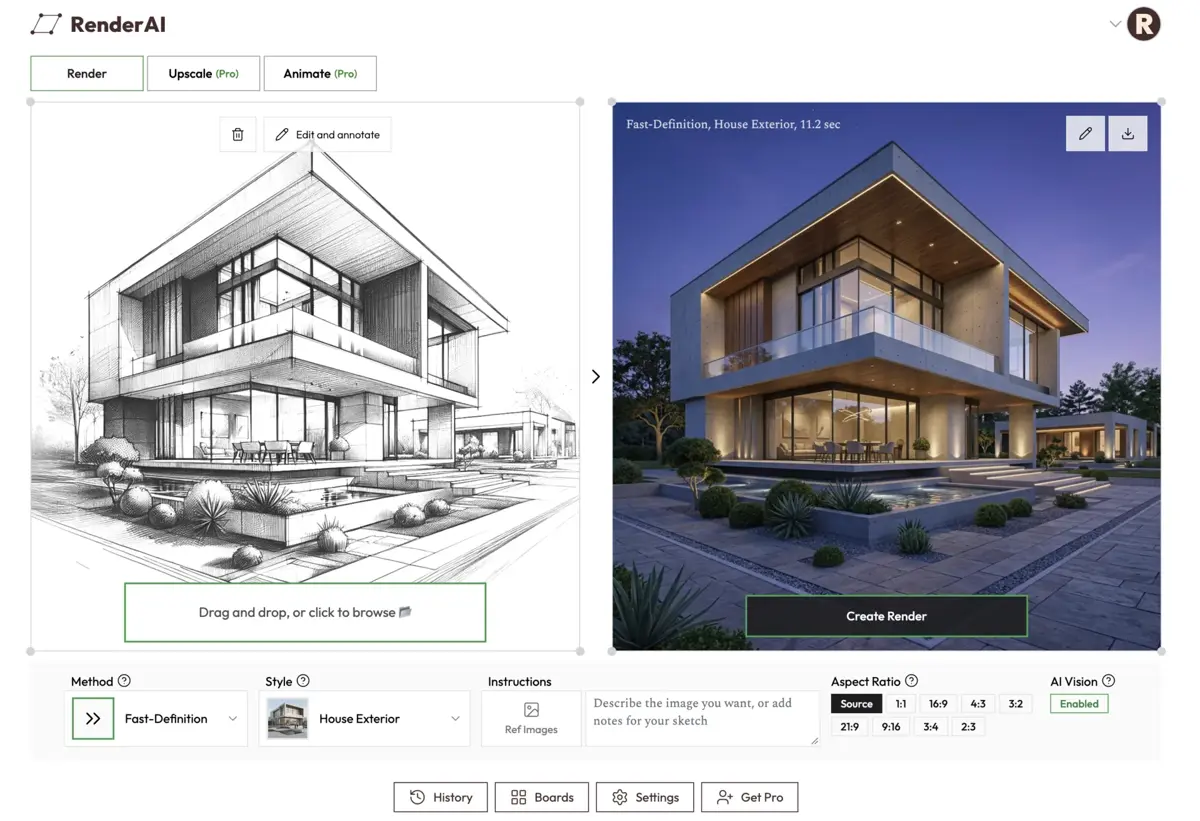
RenderAI turns a sketch (left) into a photoreal render (right) in seconds.
For more on AI and 3D tools, see Claude AI, CAD and parametric architecture and our guide to SketchUp AI rendering.
Objects Yes, Buildings Not Yet
Image-to-3D AI has become good at single objects. A clean product image can become a textured 3D model in a few minutes, and the result is a real starting point. Buildings are a different story: one image doesn’t hold enough information, and today’s tools either simplify the building into a clay model (mesh) or make a beautiful scene you can’t edit (splat).
Use these tools for furniture, decor and products as scene objects, and splats to show a place. For the building itself, keep modeling. And when the goal is only a new image, go straight from your sketch, photo or 3D view to a render.
Frequently Asked Questions
How do I turn an image into a 3D model?
Upload one clear image to an AI image-to-3D tool such as Tripo, Meshy, Hunyuan3D or TRELLIS.2, pick the quality, and wait a few minutes. The tool returns a textured 3D mesh you can rotate, check and export as GLB, OBJ, FBX or STL. Use an image of a single object on a plain background for the best result.
How do I make a 2D image 3D?
There are two ways. A mesh tool (Tripo, Meshy, Rodin) guesses the full shape of the object, including the sides you can’t see. A Gaussian splat tool (World Labs’ Marble) turns one or more images into a 3D scene you can move through. For objects, use a mesh tool. For a place or a view, a splat looks more realistic.
Is there a free AI that turns an image into a 3D model?
Yes, with limits. Meshy gives 100 free credits per month (about 5 models). Tripo lets you generate for free, but in our test the best model could not be downloaded without a paid plan. Open-source models like TRELLIS.2 and Hunyuan3D 2.1 have free online demos and can run on your own GPU. Meta’s SAM 3D Objects has a free web demo.
Can I use AI-generated 3D models commercially?
It depends on the tool and the plan. Meshy’s free models use a CC BY 4.0 license (commercial use with attribution). Tripo and Marble list commercial use as a paid-plan feature. Hunyuan3D’s license does not apply in the EU, the UK and South Korea. Always check the license of the plan you use.
Can AI make a 3D model of a building from one photo?
Not a usable one yet. In our test, Tripo turned an aerial render of a building into something like a clay model: walls, glass and trees were painted on the surface, not modeled. Marble made a convincing scene to look at, but a splat has no walls or windows you can select or measure. For technical work, you still model the building yourself.
What is the difference between a 3D mesh and a Gaussian splat?
A mesh is made of surfaces (triangles) with a texture. You can export it, edit it and place it in a 3D scene. A Gaussian splat is made of millions of small colored points. It looks very realistic from a distance, but it gets blurry up close, and you can’t edit it like geometry.
References
- Imagen a modelo 3D con IA (Spanish version)
- Tripo: AI 3D model generator
- World Labs: Marble
- World Labs docs: Gaussian splat export
- Meshy docs: Pricing and credits
- Hyper3D: Rodin pricing
- Tencent: Hunyuan3D 2.1 on GitHub
- Microsoft: TRELLIS.2 on Hugging Face
- Meta: SAM 3D Objects on GitHub
- Prompt to Parametric: Claude AI, CAD and Architecture
- SketchUp AI Rendering for Architects and Designers
- This content combines our own tests with AI-assisted research and writing, reviewed and edited by the RenderAI team
About the Author:
This article was written by Francisco. Architect, Visual Designer & Founder of RenderAI.